The Claude WordPress Connector: Connect Claude to Your Site, With Real Access Controls and an Audit Log
Install it, connect it, decide exactly what Claude may touch, and keep a record of every call — no migration, no rebuild.
Most guides to putting AI near a WordPress site stop at “and now it’s connected.” That’s the easy part. The part that decides whether you sleep at night is what the assistant is allowed to change — and whether you can see what it actually did afterwards.
This guide walks through the Claude WordPress connector from Claude CMS: a plugin that lets Claude edit posts, pages, media, menus, settings and WooCommerce data by prompt — gated behind seven capability switches and an on-site audit log. We’ll set it up, then spend most of the time on the bits other tutorials skip: sensible permission profiles, reading the log, and fixing the connection when a host or security plugin gets in the way.
Download the Claude WordPress connector plugin from your Claude CMS account, upload it under Plugins → Add New, and paste the one-time connection code. Then open the plugin’s Access Controls tab and switch off anything Claude shouldn’t do on this site — publishing and database writes are the usual two. Every call Claude makes is logged on your own server, kept for 24 hours by default or up to six months.
What the Claude WordPress Connector Actually Does
Claude talks to tools through the Model Context Protocol (MCP). The Claude WordPress connector hands Claude a set of WordPress-native tools: posts and pages, menus, settings, media, plugins, cache, files (with a backup taken before each write) and guarded SQL. Type “add a gallery of these eight photos to the About page” and Claude picks the tools, makes the calls, and reports back what it changed.
It works from the Claude apps and from Claude Code, against the WordPress site you already run. Nothing gets migrated. Your theme, your plugins, your team’s wp-admin habits — all stay exactly where they are. Whether you’re on a content site, a WooCommerce store or something more custom, the connector sits on top of what’s already there.
Three things are never writable, whatever you switch on: WordPress core, wp-config.php, and the connector plugin itself. That last one matters more than it sounds. An assistant that could edit its own permission layer wouldn’t really have one.
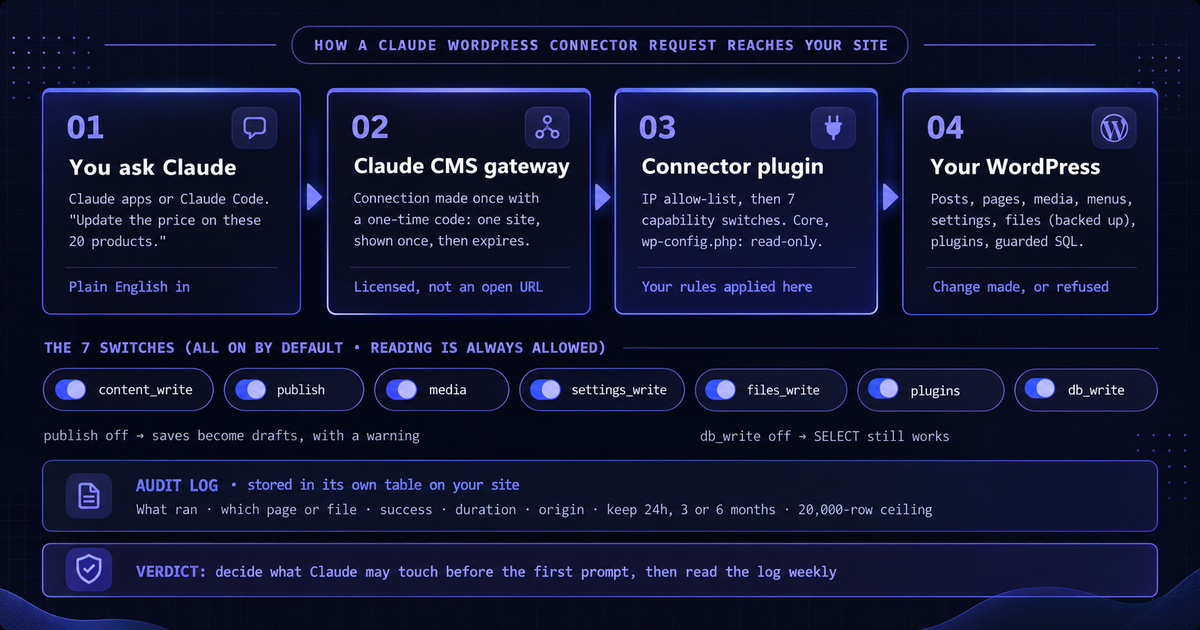
How to Install the Claude WordPress Connector in 5 Steps
You’ll need a Claude CMS account (one licence covers every connector — see the current plans), a Claude account, and admin access to the WordPress site. Allow about ten minutes.
| Step | What to do |
|---|---|
| 1 · Download | Grab the plugin from the Getting Started page of your Claude CMS account — a single zip. |
| 2 · Upload | Plugins → Add New → Upload Plugin, choose the zip, activate. No FTP, no editing files. |
| 3 · Connect | Your account shows a one-time code — good for one site, shown once, and it expires. Paste it into the plugin’s Connect step. The plugin registers with the Claude CMS gateway and you’re live. |
| 4 · Set Access Controls | Everything is allowed by default. Decide now what this site actually needs (the matrix below helps), not after something surprises you. |
| 5 · Test | Ask Claude to list your five most recent posts, then to draft a short test post. Confirm both show up in the log. |
Don’t want to install anything yourself? Claude CMS also offers a done-for-you setup, where their team connects and tests the site and the connection simply appears under Connections in your account. If you’d rather hand the whole thing over, that’s the route — or we can do it for you (more on that below).
The Seven Access Switches, Explained
This is where the Claude WordPress connector earns its keep. Reading is always allowed. Writing is split into seven switches, each enforced on the server when a call arrives — not by asking Claude nicely in a prompt. That distinction is the whole point: a blocked capability is blocked at your site, so a cleverly worded request can’t talk its way past it.
| Switch | Controls | When off |
|---|---|---|
| content_write | Creating and editing posts, pages and other content | Claude can read content but not change it |
| publish | Making content live | Saves are downgraded to drafts, with a warning, so a human publishes |
| media | Uploading and managing media library items | No new uploads or media edits |
| settings_write | Changing site settings | Settings are read-only |
| files_write | Writing theme and other files (backed up before each write) | No file edits at all |
| plugins | Activating, deactivating and updating plugins | Plugin state can’t change |
| db_write | SQL that changes data | SELECT still works, so reporting carries on |
There’s also an optional IP allow-list, which restricts which addresses may call the site at all.
Our take: turning publish off is the single most useful switch on a business site. Claude still does the slow part — writing and laying out the post — and a named person still decides what goes live. It’s the same review step you’d want from a junior writer, and it costs you nothing in speed.
Which Claude WordPress Connector Permissions Should You Use?
“Everything on” is fine for a sandbox. It’s rarely right for a live store. These are the permission profiles we’d start from, based on the kinds of WordPress and WooCommerce sites we maintain day to day.
| Switch | Staging | Content / blog | Live store | Client site |
|---|---|---|---|---|
| content_write | ON | ON | ON | ON |
| publish | ON | OFF | OFF | OFF |
| media | ON | ON | ON | ON |
| settings_write | ON | OFF | OFF | OFF |
| files_write | ON | OFF | OFF | OFF |
| plugins | ON | OFF | OFF | OFF |
| db_write | ON | OFF | OFF | OFF |
| IP allow-list | Optional | Optional | Recommended | Recommended |
| Log retention | 24 hours | 3 months | 6 months | 6 months |
A few notes on why we’d set them this way:
- Stores keep
db_writeoff. Product and order changes should go through WooCommerce’s own logic, never raw SQL. Read-only SQL is still handy for “how many orders shipped to Germany last month” — the answer, not the edit. - Files and plugins stay off on anything live. Theme edits and plugin updates belong on staging first. Turn them on for a specific job, do the job, turn them off again.
- Client sites get the longest log. When a client asks “who changed the returns page?”, six months of history answers it in seconds.
Reading the Audit Log
Every call the Claude WordPress connector handles is written to its own table on your site: what it did, which page or file, whether it worked, how long it took, and where it came from. Nothing leaves your server — the log is yours, on your database.
Retention is 24 hours by default, or three or six months if you choose. Old rows are pruned on writes and daily via WP-Cron, and the table has a hard ceiling of 20,000 rows, so it won’t quietly bloat your database. What to actually look for, once a week:
- Failed calls. A run of refusals usually means someone’s asking Claude for something a switch blocks. That’s either a training note for the team, or a sign the profile is too tight.
- Calls from unexpected origins. If you set an IP allow-list, there shouldn’t be any. If you didn’t, this is how you notice you probably want one.
- Slow calls. Long durations on simple edits usually point at the host or a heavy plugin hooked into saves — not at Claude.
One honest caveat: the log tells you what Claude did, not what the page looked like before. If you need line-by-line diffs and one-click restore of content, that’s a job for proper revision history. WordPress core revisions cover posts and pages; for everything else, take backups. The log is an accountability record, not a time machine.
Troubleshooting the Connection
Connection problems with any external tool talking to WordPress come from the same few places. In our experience, these are the usual suspects — roughly in the order they bite.
Security plugins blocking the REST API
Some security plugins restrict or disable the WordPress REST API for anyone not logged in, or rate-limit “unusual” traffic. If the connection test fails right after setup, check your security plugin’s REST and firewall settings first — and allow the connector’s routes rather than switching protection off.
The Authorization header gets stripped
Certain server setups, notably Apache behind nginx, drop the Authorization header before PHP ever sees it. The connector handles this pass-through automatically on those hosts. If you’re on something more unusual and calls fail with auth errors, ask your host whether the header actually reaches PHP.
You locked yourself out with the IP allow-list
Easy to do: you add your office IP, then work from home. Reading still happens inside WordPress, so log in to wp-admin and update the list. Keep it to addresses that genuinely call the site.
Edits succeed but the site doesn’t change
Almost always page caching or a CDN serving the old version. Purge the cache, or ask Claude to clear it (cache is one of the connector’s tools) after content changes.
Claude says it did something, but nothing appears
Check the log. If publish is off, the change exists as a draft — that’s working as designed. If the call isn’t in the log at all, it never reached your site.
Is the Claude WordPress Connector Right for Your Site?
The Claude WordPress connector is a strong fit if you run a WordPress or WooCommerce site with plenty of repetitive content work: product descriptions, price updates, posts, image placement, meta descriptions across fifty pages. It’s also a low-risk way to try AI on a real site without rebuilding anything — the access switches mean you can start cautious and loosen up as you trust it.
It’s a weaker fit if your site’s hard problems are structural — a slow theme, a plugin conflict, a broken checkout. An assistant with good permissions still can’t fix bad architecture, and on a live store you’d want a developer, not a prompt, making those changes. If that’s where you are, our guide on when to hire an ecommerce developer is the more useful read, and the same judgement applies whether you’re on WooCommerce or weighing Shopify versus WooCommerce. Hardening your plugin stack matters too — our write-up on a WordPress plugin backdoor shows exactly why “what can touch this site” is worth taking seriously, and it’s the same instinct that makes the connector’s access switches worth setting properly.
How we’d actually run this on a client store
We set publish and db_write off before the first prompt, every time. On a live WooCommerce store those two switches are where a well-meaning AI edit turns into an incident — a half-finished page going live, or a raw SQL change bypassing WooCommerce’s own order logic. Claude still does the writing; a person still presses publish. We’ve never regretted that order.
The audit log is the first thing we check when something looks off, not the last. “Claude said it updated the banner but I don’t see it” is almost always either a cache serving the old page or a draft sitting behind a publish-off switch. The log answers which one in about ten seconds, and it’s saved us a lot of guessing on sites we maintain for Magento and WooCommerce clients alike.
Turn files and plugins on for a job, then back off. The temptation is to leave everything enabled because it’s convenient. We treat files_write and plugins like a ladder you put away after use — on for the specific task on staging, off again the moment it’s done. Convenience that outlives its reason is how access creep starts.
Want It Set Up Properly on Your Store?
We’ll connect Claude to your site, set an access profile that fits how you actually work, and make sure the audit log is doing its job. If your store needs deeper WooCommerce or Magento work first, we’ll tell you straight.
Frequently Asked Questions
Does the Claude WordPress connector work with Claude Code?
Yes. The same connection is reachable from the Claude apps and from Claude Code, so you can manage the site from whichever you already use.
Can Claude edit wp-config.php or WordPress core files?
No. WordPress core, wp-config.php and the connector plugin itself are always read-only, whatever switches you turn on. That boundary can’t be lifted from a prompt.
Can I stop Claude publishing without my approval?
Yes. Switch off publish in Access Controls. Claude’s saves are then downgraded to drafts with a warning, and a person publishes from wp-admin. It’s the single switch we’d recommend on any business site.
Does the connector work with WooCommerce?
Yes. Claude can manage products, prices, stock, variations and orders by prompt. On a live store, keep database writes off so changes go through WooCommerce’s own logic rather than raw SQL.
Does the audit log send my data anywhere?
No. The log lives in its own table on your site, is pruned automatically, and is capped at 20,000 rows. Nothing about your site’s activity leaves your server.
Do I have to move off WordPress to use Claude?
No. The Claude WordPress connector works with the WordPress site you already have — same theme, same plugins, same hosting. Nothing is migrated.
Reviewed by the CodeAtoZ Engineering Team.