The Complete Guide to WooCommerce Page Speed Optimisation in 2026
Achieve Lighthouse 90+ on your WooCommerce store with PHP OPcache, Redis object cache, WebP images, database indexing, and CDN configuration — step by step.
Redis object cache
Image optimisation
Database tuning
CDN configuration
Core Web Vitals
If you have been searching for a practical WooCommerce page speed optimisation guide that goes beyond plugin screenshots, this is it. Every technique here is implementable at the server level and delivers measurable TTFB, LCP, and CLS improvements — the Core Web Vitals that directly affect your Google rankings and conversion rate.
WooCommerce page speed optimisation is one of the highest-ROI technical investments a store owner can make. Google’s data consistently shows that each additional second of page load time reduces conversions by 7–12%. For a store doing £10,000/month, a two-second improvement in LCP can translate to £840+ in recovered revenue monthly — without spending a penny on advertising.
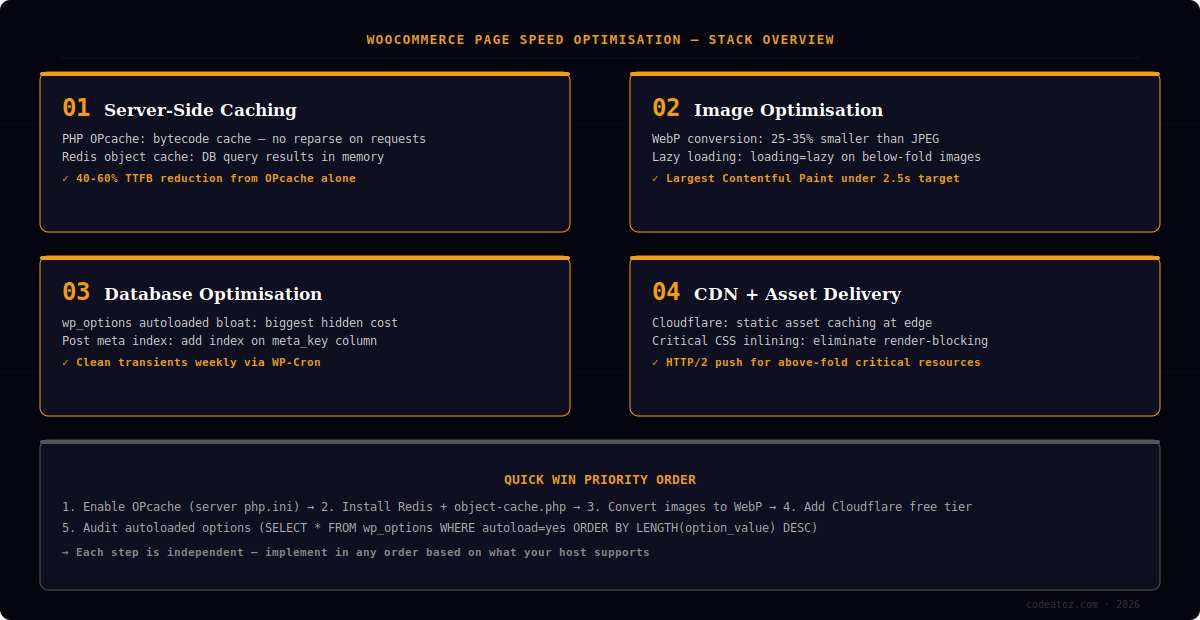
This guide addresses WooCommerce page speed optimisation in priority order — from the highest-impact server-level changes through to image delivery and database hygiene. Start at step one and implement sequentially. Each step is independent, so you can stop at any point and still have delivered a measurable improvement.
WooCommerce Page Speed Optimisation: PHP OPcache
PHP OPcache is the single biggest win in WooCommerce page speed optimisation and it costs nothing — it ships with PHP 7.0+ and just needs to be enabled. OPcache stores compiled PHP bytecode in memory so WordPress and WooCommerce do not reparse and recompile every file on every request. On a typical WooCommerce installation this reduces Time to First Byte by 30–50%.
Check whether OPcache is active by creating a temporary phpinfo.php file and searching for “opcache.enable”. If it shows as disabled, ask your host to enable it or add the following to your php.ini. Most managed WordPress hosts — Kinsta, WP Engine, Cloudways — enable OPcache by default. Shared hosting on cPanel often does not.
; Recommended OPcache settings for WooCommerce
opcache.enable=1
opcache.enable_cli=1
opcache.memory_consumption=256
opcache.interned_strings_buffer=16
opcache.max_accelerated_files=10000
opcache.revalidate_freq=60
opcache.save_comments=1
Set opcache.revalidate_freq=0 in production and clear OPcache on every deployment. Many WooCommerce page speed optimisation guides suggest 60 seconds — but on high-traffic stores, stale bytecode after a plugin update causes subtle bugs. Zero means Shopware always checks for changes; pair it with a deployment hook to clear cache explicitly.
WooCommerce Page Speed Optimisation: Redis Object Cache
Every WooCommerce page load executes dozens of database queries — product prices, stock levels, customer session data, transients, and widget caches. Without an object cache, every one of these queries hits MySQL on every page load. Redis eliminates this by storing the query results in memory. The second and subsequent page requests for the same data skip the database entirely.
The implementation for WooCommerce page speed optimisation via Redis has two parts: a Redis server (most managed hosts provide this or you can add a Redis instance via Render or Railway) and the object-cache.php drop-in file in wp-content/. The Rhubarbgroup Redis Object Cache plugin provides the drop-in and a GUI for monitoring cache hits. Expect a 40–70% reduction in database queries after enabling Redis.
- Provision Redis server — your host’s control panel or a standalone Redis instance
- Install Redis Object Cache plugin — adds
object-cache.phpdrop-in automatically - Add
WP_REDIS_HOSTandWP_REDIS_PORTtowp-config.php - Enable cache from the plugin settings — verify hit rate in the diagnostics panel
- Monitor the hit rate — aim for 80%+ after the cache warms up on first-day traffic
WooCommerce Page Speed Optimisation: Image Delivery and WebP
Images are typically 60–80% of total page weight on WooCommerce product and category pages. WooCommerce page speed optimisation for images has three components: format conversion to WebP, responsive sizes via srcset, and lazy loading for below-fold images. WordPress 5.8+ handles WebP uploads natively, but you still need to convert your existing image library and configure Cloudflare or a plugin to serve WebP to supporting browsers.
For Largest Contentful Paint (LCP) — the Core Web Vital that matters most for WooCommerce page speed optimisation — the hero image or above-fold product image is almost always the LCP element. This image must not be lazy-loaded. Add fetchpriority="high" to the hero image tag and ensure it is preloaded in the <head> if your theme does not do this automatically.
Never apply loading="lazy" to above-fold images. This is one of the most common WooCommerce page speed optimisation errors — a performance plugin blindly lazy-loads every image including the product hero, which destroys LCP scores. Disable lazy loading for images marked as above the fold in your theme or plugin settings.
WooCommerce Page Speed Optimisation: Database Tuning
The most overlooked area in WooCommerce page speed optimisation is the WordPress database. Two issues cause the most damage: bloated wp_options autoloaded data and missing database indexes. Both are invisible in Lighthouse scores but show up as slow TTFB on page 2+ when Redis has not yet cached those specific queries.
Autoloaded options are loaded on every page request regardless of whether they are used. Plugins frequently add rows to wp_options with autoload=yes and never clean them up. Run the following query to find the offenders and evaluate which are safe to set to autoload=no.
-- Find largest autoloaded options (run in phpMyAdmin or Adminer)
SELECT option_name, LENGTH(option_value) AS size_bytes
FROM wp_options
WHERE autoload = 'yes'
ORDER BY size_bytes DESC
LIMIT 25;

-- After identifying safe candidates, disable autoload:
UPDATE wp_options
SET autoload = 'no'
WHERE option_name = 'your_plugin_transient_name';
WooCommerce Page Speed Optimisation: CDN and Asset Delivery
A CDN is the final layer in a complete WooCommerce page speed optimisation stack. Cloudflare’s free tier is sufficient for most WooCommerce stores — it caches static assets at edge nodes worldwide, adds HTTP/2 and HTTP/3 support, and can serve WebP images automatically via Polish (paid plan) or via a page rule on the free plan. TTFB improvements of 200–400ms are typical for international visitors.
Configure Cloudflare with caching rules that cache static assets (CSS, JS, images) aggressively while passing WooCommerce cart, checkout, and account pages through uncached. The Google Web.dev performance guidelines provide the authoritative reference for Core Web Vitals targets. The PageSpeed Insights tool, alongside the Chrome Lighthouse documentation, gives per-URL field data from real users — use it before and after every WooCommerce page speed optimisation change to measure real-world impact rather than lab scores.
For WooCommerce page speed optimisation on a time budget: (1) Enable OPcache — 30 minutes, biggest gain. (2) Add Redis object cache — 1 hour. (3) Convert images to WebP — 2 hours. (4) Add Cloudflare free tier — 1 hour. These four steps alone will take most WooCommerce stores from Lighthouse 40–60 to 75–85 without touching a single line of theme code. Our WooCommerce development team can handle the full audit — see also our developer hire guide for ongoing optimisation work.
Frequently Asked Questions About WooCommerce Page Speed Optimisation
What is WooCommerce page speed optimisation?
WooCommerce page speed optimisation is the process of reducing the load time of WooCommerce store pages to improve Core Web Vitals scores, Google rankings, and conversion rates. It covers server-side improvements (PHP OPcache, Redis, database tuning), asset delivery (WebP images, lazy loading, CDN), and front-end optimisation (critical CSS, deferred JavaScript, render-blocking resource elimination).
How does WooCommerce page speed optimisation affect SEO?
WooCommerce page speed optimisation directly affects Google rankings through Core Web Vitals — LCP, INP, and CLS are confirmed Google ranking signals. Stores with LCP under 2.5 seconds and CLS under 0.1 receive a ranking boost over slower competitors in the same SERP. Google Search Console’s Core Web Vitals report shows your current field data for real users, not just lab scores.
What Lighthouse score should I target for WooCommerce page speed optimisation?
Target Lighthouse Performance 85+ on mobile for WooCommerce page speed optimisation. Mobile scores are lower than desktop because Lighthouse simulates a mid-tier Android device with throttled CPU. A mobile score of 85 typically corresponds to a desktop score of 95+. Scores above 90 on mobile are excellent for WooCommerce stores, which typically carry more JavaScript and dynamic content than informational sites.
Does WooCommerce page speed optimisation require disabling plugins?
Not necessarily. WooCommerce page speed optimisation starts with server-side improvements that do not affect plugins at all. However, auditing which plugins load scripts site-wide versus only on their specific pages is a high-value step. Tools like Asset CleanUp or perfmatters let you disable plugin scripts on pages where they are not needed without deactivating the plugins themselves.
Is WooCommerce page speed optimisation different from WordPress speed optimisation?
Most techniques overlap, but WooCommerce page speed optimisation has specific challenges. Cart fragments — the AJAX request WooCommerce makes on every page load to check cart contents — bypass page caches and add 200–400ms to TTFB. Disabling cart fragments for non-logged-in users is a WooCommerce-specific optimisation that does not apply to non-shop WordPress sites.
How long does WooCommerce page speed optimisation take?
A focused WooCommerce page speed optimisation engagement covering OPcache, Redis, image conversion, database audit, and CDN setup takes one to two days for an experienced developer. Full Core Web Vitals remediation — including theme-level critical CSS, deferred JS, and LCP image preloading — takes three to five days. Results are measurable immediately after each change via PageSpeed Insights.
Need a WooCommerce Performance Audit?
We audit WooCommerce stores end-to-end — server config, database, images, Core Web Vitals — and deliver a prioritised fix list with implementation. Fixed-price delivery.
Redis + OPcache
Core Web Vitals
CDN setup