How to Add WooCommerce Custom Checkout Fields with PHP
Add, save, validate, and display custom checkout fields — text, select, checkbox, textarea — no plugin required.
Adding WooCommerce custom checkout fields is one of the most requested customisations for any WooCommerce store. Whether you need a VAT number input, a delivery date picker, or a gift message box, WooCommerce custom checkout fields let you capture exactly the data your fulfilment process needs. This guide shows you how to add, save, validate, and display WooCommerce custom checkout fields using PHP hooks — no plugin required.
WooCommerce’s checkout is built around a filterable field array. The woocommerce_checkout_fields filter gives you complete control over billing, shipping, and order sections. Data saves to order meta and appears in the WooCommerce order admin automatically.
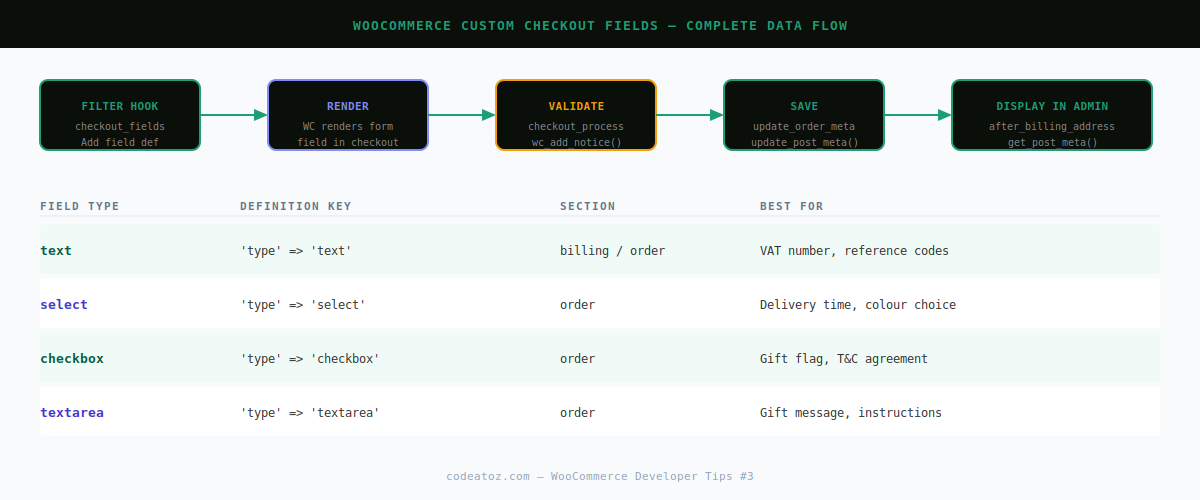
The WooCommerce Custom Checkout Fields Hook System
Three hooks power the entire WooCommerce custom checkout fields workflow:
- woocommerce_checkout_fields — filter that adds your field to the checkout form
- woocommerce_checkout_process — action for custom validation before order is created
- woocommerce_checkout_update_order_meta — action that saves field values to order meta
Adding WooCommerce Custom Checkout Fields — All Field Types
PHP — Add text, select, checkbox, textarea fieldsadd_filter( 'woocommerce_checkout_fields', 'caz_add_custom_checkout_fields' );
function caz_add_custom_checkout_fields( $fields ) {
// Text field — VAT number in billing section
$fields['billing']['billing_vat_number'] = [
'type' => 'text',
'label' => 'VAT Number',
'placeholder' => 'GB123456789',
'required' => false,
'class' => [ 'form-row-wide' ],
'clear' => true,
'priority' => 110,
];
// Select — delivery time in order section
$fields['order']['preferred_delivery_time'] = [
'type' => 'select',
'label' => 'Preferred Delivery Time',
'options' => [
'' => 'Select a time slot',
'morning' => '09:00 - 12:00',
'midday' => '12:00 - 15:00',
'evening' => '15:00 - 18:00',
],
'class' => [ 'form-row-wide' ],
'required' => false,
'priority' => 20,
];
// Checkbox — gift order flag
$fields['order']['is_gift_order'] = [
'type' => 'checkbox',
'label' => 'This is a gift order',
'class' => [ 'form-row-wide' ],
'required' => false,
'priority' => 30,
];
// Textarea — gift message
$fields['order']['gift_message'] = [
'type' => 'textarea',
'label' => 'Gift Message',
'placeholder' => 'Your personal message...',
'class' => [ 'form-row-wide' ],
'required' => false,
'priority' => 40,
];
return $fields;
}
Saving WooCommerce Custom Checkout Fields to Order Meta
PHP — Save custom fields on order creationadd_action( 'woocommerce_checkout_update_order_meta', 'caz_save_custom_checkout_fields' );
function caz_save_custom_checkout_fields( $order_id ) {
$text_fields = [ 'billing_vat_number', 'preferred_delivery_time', 'gift_message' ];
foreach ( $text_fields as $field ) {
if ( ! empty( $_POST[ $field ] ) ) {
update_post_meta( $order_id, '_' . $field,
sanitize_text_field( wp_unslash( $_POST[ $field ] ) )
);
}
}
// Checkbox: only present in POST when checked
update_post_meta( $order_id, '_is_gift_order',
isset( $_POST['is_gift_order'] ) ? 'yes' : 'no'
);
}
Displaying WooCommerce Custom Checkout Fields in Order Admin
PHP — Show fields on the order edit screenadd_action( 'woocommerce_admin_order_data_after_billing_address', 'caz_display_custom_fields_admin' );
function caz_display_custom_fields_admin( $order ) {
$id = $order->get_id();
$fields = [
'_billing_vat_number' => 'VAT Number',
'_preferred_delivery_time' => 'Delivery Time',
'_gift_message' => 'Gift Message',
];
foreach ( $fields as $key => $label ) {
$val = get_post_meta( $id, $key, true );
if ( $val ) echo '<p><strong>' . esc_html( $label ) . ':</strong> ' . esc_html( $val ) . '</p>';
}
if ( get_post_meta( $id, '_is_gift_order', true ) === 'yes' ) {
echo '<p><strong>Gift Order:</strong> Yes</p>';
}
}
Validating WooCommerce Custom Checkout Fields
PHP — Custom validation hookadd_action( 'woocommerce_checkout_process', 'caz_validate_checkout_fields' );
function caz_validate_checkout_fields() {
$vat = sanitize_text_field( wp_unslash( $_POST['billing_vat_number'] ?? '' ) );
if ( $vat !== '' && strlen( $vat ) < 9 ) {
wc_add_notice( 'Please enter a valid VAT number (min 9 characters).', 'error' );
}
}
See also our guides on WooCommerce custom REST API endpoints and building a WooCommerce plugin from scratch. The WordPress update_post_meta documentation covers meta storage in detail.
Frequently Asked Questions About WooCommerce Custom Checkout Fields
How do I add WooCommerce custom checkout fields without a plugin?
Use the woocommerce_checkout_fields filter to register the field, woocommerce_checkout_update_order_meta to save it, and woocommerce_admin_order_data_after_billing_address to display it in admin — no plugin required.
Where are WooCommerce custom checkout fields stored?
Custom fields are saved as WordPress post meta on the order post using update_post_meta(). Retrieve them with get_post_meta( $order_id, '_field_name', true ).
What field types can I use for WooCommerce custom checkout fields?
WooCommerce supports text, password, textarea, select, radio, checkbox, country, state, and date types via the type key in the field definition array.
How do I make a WooCommerce custom checkout field required?
Set 'required' => true in your field definition. WooCommerce automatically blocks checkout submission and shows a validation message if the field is empty.
Can I add WooCommerce custom checkout fields to the billing section?
Yes — use the billing key in the woocommerce_checkout_fields array. Use the priority key to control position relative to existing fields. The default phone field uses priority 100.
Will WooCommerce updates break my custom checkout fields?
No — hook-based custom checkout fields survive WooCommerce updates because they use the official filter/action system. Template file overrides break on updates; hooks do not.
Need a Custom WooCommerce Checkout?
CodeAtoZ builds bespoke checkout flows — custom fields, multi-step forms, B2B order inputs, and VAT handling. Let's talk.