WooCommerce Countdown Timer Sale — Urgency-Driven Conversion Guide (2026)
A WooCommerce countdown timer sale is one of the most effective urgency tactics in e-commerce — showing customers exactly how long remains before a sale ends creates genuine scarcity and drives faster purchase decisions. Building a reliable WooCommerce countdown timer sale requires the server (PHP) to control the sale end time, with the browser JavaScript only displaying the countdown. This prevents customers from manipulating the timer by changing their system clock. This guide covers the complete WooCommerce countdown timer sale implementation: storing the sale end time in product meta, outputting it as a data attribute, vanilla JavaScript countdown logic, cart page banner countdown, and integration with the WooCommerce flash sale automation system.
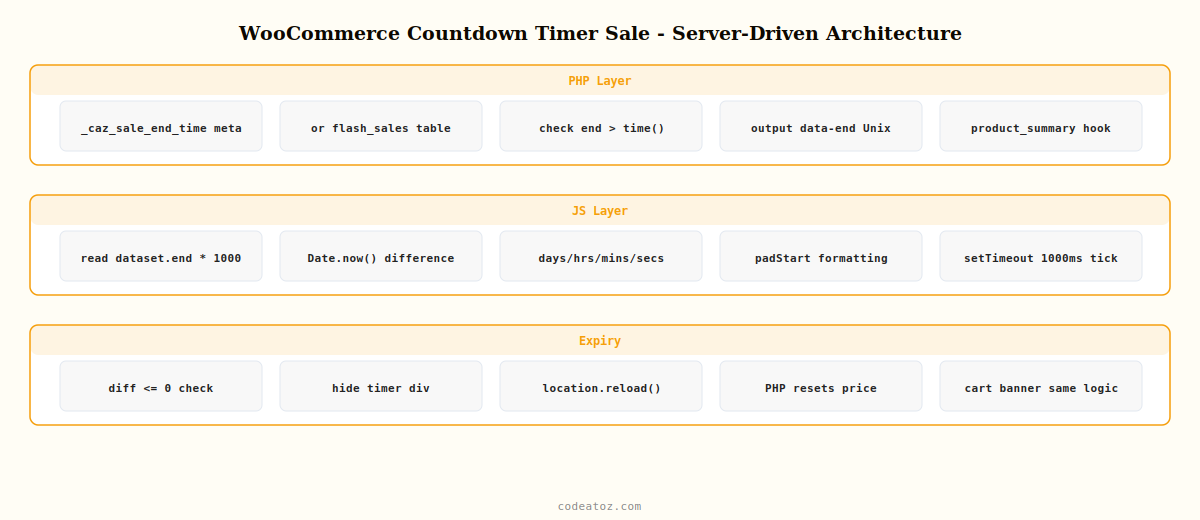
A WooCommerce countdown timer sale that only exists in JavaScript is a dark pattern — the timer is fake and resets every time the customer opens the page. A server-driven WooCommerce countdown timer sale reads the actual sale end time from the database and passes it to the JavaScript, so the same countdown is shown to every visitor and the timer accurately reflects when the sale ends.
WooCommerce Countdown Timer Sale: Server-Side End Time
Store the sale end time in product meta or in the flash sale table from our automation guide. Pass it to the page as a data-end attribute on the countdown container — this is the only JavaScript-safe way to make the WooCommerce countdown timer sale server-authoritative.
<?php
add_action( 'woocommerce_single_product_summary', 'caz_output_countdown_timer', 15 );

function caz_output_countdown_timer(): void {
    global $product;

    // Get sale end time from product meta or flash sale table
    $end_time = $product->get_meta( '_caz_sale_end_time' );

    // Also check active flash sales from our automation table
    if ( ! $end_time ) {
        global $wpdb;
        $sale = $wpdb->get_row( $wpdb->prepare(
            "SELECT end_time FROM {$wpdb->prefix}caz_flash_sales
             WHERE status='active'
             AND JSON_CONTAINS(product_ids, %s, '$')",
            json_encode( (string) $product->get_id() )
        ));
        if ( $sale ) $end_time = $sale->end_time;
    }

    if ( ! $end_time ) return;
    $end_unix = strtotime( $end_time );
    if ( $end_unix <= time() ) return; // sale already ended — no WooCommerce countdown timer sale

    // Output countdown container — JS reads data-end attribute
    printf(
        '<div class="caz-countdown-sale" data-end="%d">
            <span class="caz-sale-label">%s</span>
            <div class="caz-countdown-timer">
                <span class="caz-cd-days"><b>0</b> %s</span>
                <span class="caz-cd-hours"><b>0</b> %s</span>
                <span class="caz-cd-mins"><b>0</b> %s</span>
                <span class="caz-cd-secs"><b>0</b> %s</span>
            </div>
        </div>',
        esc_attr( $end_unix ),
        esc_html__( 'Sale ends in:', 'caz-scm' ),
        esc_html__( 'days', 'caz-scm' ),
        esc_html__( 'hrs', 'caz-scm' ),
        esc_html__( 'min', 'caz-scm' ),
        esc_html__( 'sec', 'caz-scm' )
    );
}
WooCommerce Countdown Timer Sale: Vanilla JavaScript Countdown
The JavaScript reads the data-end Unix timestamp from the container, calculates the remaining time on each tick, and updates the display. When the WooCommerce countdown timer sale expires, it hides the timer and optionally reloads the page to show the updated price.
// WooCommerce countdown timer sale — server-authoritative vanilla JS
document.addEventListener('DOMContentLoaded', function() {
  document.querySelectorAll('.caz-countdown-sale').forEach(function(el) {
    var endTime = parseInt(el.dataset.end, 10) * 1000; // convert to ms

    function updateTimer() {
      var now  = Date.now();
      var diff = endTime - now;

      if (diff <= 0) {
        // WooCommerce countdown timer sale expired: hide timer, reload to show updated price
        el.style.display = 'none';
        if (typeof window.wc_add_to_cart_params !== 'undefined') {
          location.reload(); // only reload on WooCommerce product pages
        }
        return;
      }

      var days  = Math.floor(diff / 86400000);
      var hours = Math.floor((diff % 86400000) / 3600000);
      var mins  = Math.floor((diff % 3600000)  / 60000);
      var secs  = Math.floor((diff % 60000)    / 1000);

      el.querySelector('.caz-cd-days b').textContent  = days;
      el.querySelector('.caz-cd-hours b').textContent = String(hours).padStart(2, '0');
      el.querySelector('.caz-cd-mins b').textContent  = String(mins).padStart(2, '0');
      el.querySelector('.caz-cd-secs b').textContent  = String(secs).padStart(2, '0');

      setTimeout(updateTimer, 1000);
    }

    updateTimer(); // start WooCommerce countdown timer sale immediately
  });
});
WooCommerce Countdown Timer Sale: Cart Page Banner
Showing the WooCommerce countdown timer sale on the cart page reinforces urgency at the moment of commitment. Output the countdown in the cart notice area when a sale product is in the cart.
add_action( 'woocommerce_before_cart', 'caz_cart_countdown_banner' );

function caz_cart_countdown_banner(): void {
    $earliest_end = PHP_INT_MAX;

    foreach ( WC()->cart->get_cart() as $item ) {
        $end = $item['data']->get_meta( '_caz_sale_end_time' );
        if ( $end && strtotime( $end ) < $earliest_end ) {
            $earliest_end = strtotime( $end );
        }
    }

    if ( $earliest_end === PHP_INT_MAX || $earliest_end <= time() ) return;

    printf(
        '<div class="caz-cart-countdown woocommerce-info" data-end="%d">
            <strong>%s</strong>
            <span class="caz-cd-hours"><b>0</b> hrs</span>
            <span class="caz-cd-mins"><b>0</b> min</span>
            <span class="caz-cd-secs"><b>0</b> sec</span>
        </div>',
        esc_attr( $earliest_end ),
        esc_html__( 'Your sale price expires in:', 'caz-scm' )
    );
}
The MDN Date.now() documentation covers the JavaScript time method used in the WooCommerce countdown timer sale. The WooCommerce product data documentation covers the meta API for storing sale end times. See our WooCommerce flash sale automation guide for the Action Scheduler integration that automatically activates and expires the sale the WooCommerce countdown timer sale counts down to, and our Smart Campaign Manager Pro for a visual countdown timer campaign builder.
💡 Never set the WooCommerce countdown timer sale end time in JavaScript alone. Any customer who opens the browser developer tools can see and modify the countdown value, extending their “sale” indefinitely. Always read the end time from PHP — either product meta or the flash sale table — and output it as a data-end attribute so the server is the source of truth for every WooCommerce countdown timer sale.
Smart Campaign Manager Pro — Countdown Timer Campaigns
Create WooCommerce countdown timer sale campaigns visually — product page timer, cart banner, customisable styling, and automatic sale expiry via Action Scheduler.
Frequently Asked Questions — WooCommerce Countdown Timer Sale
How do I add a countdown timer to WooCommerce sale products?
Store the sale end time in product meta as a datetime string. In the woocommerce_single_product_summary action, check if the end time is in the future and output a countdown container div with the Unix timestamp as a data-end attribute. Use vanilla JavaScript to read the data-end value, calculate remaining time on each second tick, and update the hours, minutes, and seconds display elements. Hide the WooCommerce countdown timer sale when the timestamp passes.
Why should the WooCommerce countdown timer sale end time be server-driven?
A client-side only countdown uses JavaScript timestamps that the customer can manipulate in developer tools, resetting the timer to extend their perceived sale. A server-driven WooCommerce countdown timer sale stores the end time in the database and passes it to JavaScript via a PHP-rendered data attribute. Every customer sees the same countdown based on the actual sale end time, making the urgency genuine and the sale expiry reliable.
How do I show the countdown timer in the WooCommerce cart?
Hook into woocommerce_before_cart. Iterate the cart items and find the earliest sale end time among the products in the cart. Output a countdown container with that timestamp as a data-end attribute. The same JavaScript countdown logic that runs on the product page works on the cart page — the .caz-countdown-sale querySelector selects all countdown containers across both pages. The cart WooCommerce countdown timer sale reinforces urgency at the checkout funnel stage.
What happens to the WooCommerce countdown timer sale after it expires?
In the JavaScript, when Date.now() exceeds the data-end timestamp, hide the countdown container and reload the page if you’re on a WooCommerce product page. The page reload causes WooCommerce to show the updated post-sale price. Server-side, the PHP function checks if end time is in the past and returns early without outputting the countdown. The WooCommerce flash sale automation expiry handler should have already reset the product price via Action Scheduler.
Can I show the WooCommerce countdown timer sale on the shop archive page?
Yes — hook into woocommerce_after_shop_loop_item and output a compact countdown below each product card. Read the sale end time from product meta. For performance, consider caching the sale end time lookup to avoid a meta query per product on archive pages with large catalogues. A compact WooCommerce countdown timer sale on archive cards — showing only hours and minutes — adds urgency at the discovery stage before the customer clicks through.
How do I style the WooCommerce countdown timer sale to match my theme?
Enqueue a stylesheet targeting the .caz-countdown-sale class in your plugin or child theme. The countdown uses semantic HTML elements (b for numbers, span for labels) that are straightforward to style. For the urgency effect, consider using a red or amber background when fewer than 2 hours remain by adding a JavaScript class like caz-cd-urgent when the remaining time drops below 7200 seconds in your WooCommerce countdown timer sale JavaScript.
Need Urgency-Driven Campaigns on Your Store?
Smart Campaign Manager Pro includes a WooCommerce countdown timer sale builder — server-driven timers, cart banners, and automatic expiry with no coding needed.