WooCommerce Product CSV Import — Custom Importer with WP-CLI (2026)
A custom WooCommerce product CSV import command gives you complete control over how catalogue data maps to WooCommerce products — handling supplier-specific column names, upsert logic (create new or update existing by SKU), category creation, and image download from remote URLs. The built-in WooCommerce product CSV import is powerful but limited to its fixed column format. A custom WP-CLI WooCommerce product CSV import command processes any CSV structure, handles 50,000+ product catalogues in batches without memory issues, and produces a detailed error log so you know exactly which rows failed and why.
WP-CLI is the correct tool for large WooCommerce product CSV import operations because it bypasses web server timeouts, supports configurable memory limits, and produces console output you can pipe to a log file. The import command iterates through the CSV in configurable batch sizes, creates or updates products using WooCommerce’s product API, and maintains a progress counter so you can estimate completion time for large catalogues.
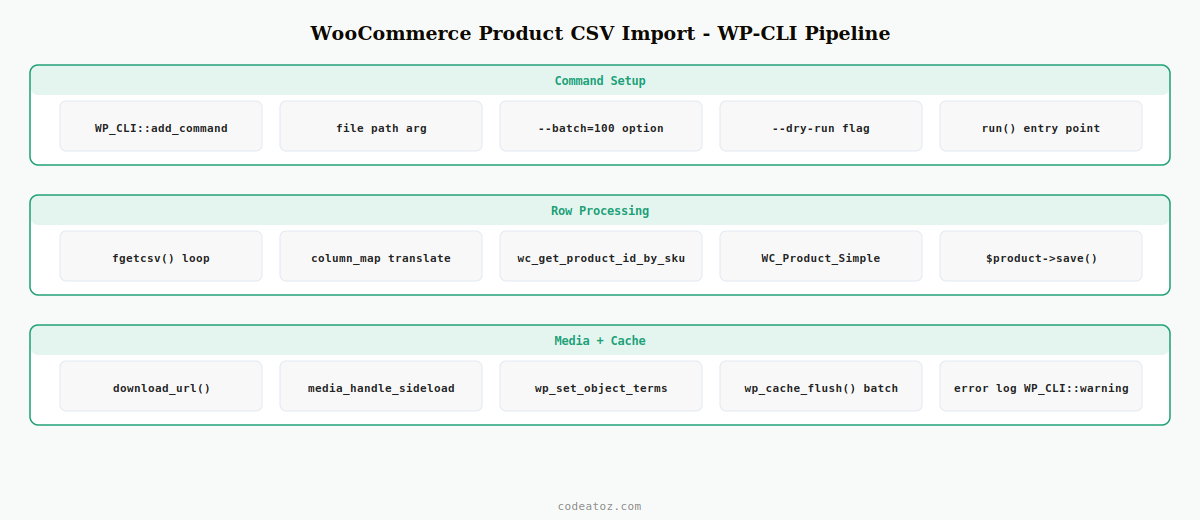
Step 1: Build the WooCommerce Product CSV Import WP-CLI Command
Register a WP-CLI command that accepts the CSV file path, batch size, and dry-run flag. The command is the entry point for every WooCommerce product CSV import operation.
<?php
if ( defined( 'WP_CLI' ) && WP_CLI ) {
    WP_CLI::add_command( 'caz import products', 'CAZ_Product_Import_Command' );
}

class CAZ_Product_Import_Command {

    /**
     * WooCommerce product CSV import command
     *
     * ## OPTIONS
     * <file>
     * : Path to the CSV file
     *
     * [--batch=<size>]
     * : Rows per batch (default: 100)
     *
     * [--dry-run]
     * : Preview without saving
     *
     * ## EXAMPLES
     * wp caz import products catalogue.csv --batch=200
     *
     * @param array $args
     * @param array $assoc_args
     */
    public function __invoke( array $args, array $assoc_args ): void {
        $file      = $args[0] ?? '';
        $batch     = (int) ( $assoc_args['batch']   ?? 100 );
        $dry_run   = isset( $assoc_args['dry-run'] );

        if ( ! file_exists( $file ) ) {
            WP_CLI::error( 'CSV file not found: ' . $file );
        }

        WP_CLI::log( 'Starting WooCommerce product CSV import: ' . $file );
        if ( $dry_run ) WP_CLI::log( '[DRY RUN] No data will be saved.' );

        $importer  = new CAZ_CSV_Importer( $file, $batch, $dry_run );
        $results   = $importer->run();

        WP_CLI::success( sprintf(
            'WooCommerce product CSV import complete. Created: %d | Updated: %d | Failed: %d',
            $results['created'], $results['updated'], $results['failed']
        ));
    }
}
Step 2: WooCommerce Product CSV Import — Column Mapping and Row Processing
The column mapper translates your supplier’s CSV headers to WooCommerce product fields. Define a configurable mapping array so the same importer can handle different CSV formats without code changes.
<?php
class CAZ_CSV_Importer {

    // Column mapping: CSV header => WooCommerce field
    private array $column_map = [
        'product_code'   => 'sku',
        'product_name'   => 'name',
        'description'    => 'description',
        'short_desc'     => 'short_description',
        'trade_price'    => 'regular_price',
        'stock_qty'      => 'stock_quantity',
        'category'       => 'category',
        'image_url'      => 'image_url',
        'weight_kg'      => 'weight',
    ];

    public function __construct(
        private string $file,
        private int    $batch_size,
        private bool   $dry_run
    ) {}

    public function run(): array {
        $handle  = fopen( $this->file, 'r' );
        $headers = fgetcsv( $handle );
        $results = ['created' => 0, 'updated' => 0, 'failed' => 0];
        $row_num = 1;

        while ( ( $row = fgetcsv( $handle ) ) !== false ) {
            $data = array_combine( $headers, $row );
            try {
                $result = $this->process_row( $data );
                $results[ $result ]++;
                if ( $row_num % $this->batch_size === 0 ) {
                    // Clear object cache between batches to prevent memory growth
                    wp_cache_flush();
                    WP_CLI::log( "WooCommerce product CSV import progress: {$row_num} rows processed." );
                }
            } catch ( Exception $e ) {
                $results['failed']++;
                WP_CLI::warning( "Row {$row_num} failed: " . $e->getMessage() );
            }
            $row_num++;
        }

        fclose( $handle );
        return $results;
    }

    private function process_row( array $raw ): string {
        $sku = sanitize_text_field( $raw[ array_search( 'sku', $this->column_map ) ] ?? '' );
        if ( ! $sku ) throw new Exception( 'Missing SKU' );

        // Upsert: find existing product by SKU or create new
        $product_id = wc_get_product_id_by_sku( $sku );
        $product    = $product_id ? wc_get_product( $product_id ) : new WC_Product_Simple();
        $is_new     = ! $product_id;

        // Map CSV columns to WooCommerce product fields
        foreach ( $this->column_map as $csv_col => $wc_field ) {
            $value = sanitize_text_field( $raw[ $csv_col ] ?? '' );
            if ( $value === '' ) continue;
            match ( $wc_field ) {
                'sku'              => $product->set_sku( $value ),
                'name'             => $product->set_name( $value ),
                'description'      => $product->set_description( wp_kses_post( $raw[ $csv_col ] ) ),
                'short_description'=> $product->set_short_description( wp_kses_post( $raw[ $csv_col ] ) ),
                'regular_price'    => $product->set_regular_price( wc_format_decimal( $value ) ),
                'stock_quantity'   => $product->set_stock_quantity( (int) $value ),
                'weight'           => $product->set_weight( $value ),
                default            => null,
            };
        }

        $product->set_status( 'publish' );
        $product->set_catalog_visibility( 'visible' );

        if ( ! $this->dry_run ) {
            $product->save();
            // Handle category and image after save (requires product ID)
            $this->set_category( $product, $raw['category'] ?? '' );
            $this->import_image( $product, $raw['image_url'] ?? '' );
        }

        return $is_new ? 'created' : 'updated';
    }
Step 3: WooCommerce Product CSV Import — Image Download and Category Creation
The image importer downloads remote product images during the WooCommerce product CSV import and attaches them to the product. The category handler creates categories that don’t yet exist, preventing import failures on new catalogues.
    private function import_image( WC_Product $product, string $url ): void {
        if ( ! $url || ! filter_var( $url, FILTER_VALIDATE_URL ) ) return;
        // Skip if product already has this image (check meta)
        if ( $product->get_meta( '_caz_import_image_url' ) === $url ) return;

        $tmp    = download_url( $url );
        if ( is_wp_error( $tmp ) ) return;

        $file_array = [
            'name'     => basename( parse_url( $url, PHP_URL_PATH ) ),
            'tmp_name' => $tmp,
        ];
        $attach_id = media_handle_sideload( $file_array, $product->get_id() );
        if ( ! is_wp_error( $attach_id ) ) {
            $product->set_image_id( $attach_id );
            $product->update_meta_data( '_caz_import_image_url', $url );
            $product->save();
        }
        @unlink( $tmp );
    }

    private function set_category( WC_Product $product, string $category_name ): void {
        if ( ! $category_name ) return;
        $term = get_term_by( 'name', $category_name, 'product_cat' );
        if ( ! $term ) {
            $result = wp_insert_term( $category_name, 'product_cat' );
            $term_id = is_wp_error( $result ) ? 0 : $result['term_id'];
        } else {
            $term_id = $term->term_id;
        }
        if ( $term_id ) {
            wp_set_object_terms( $product->get_id(), [ $term_id ], 'product_cat' );
        }
    }
}
The WP-CLI command documentation covers command registration and argument syntax for WooCommerce product CSV import scripts. The WooCommerce product data store documentation covers the WC_Product API used for all product CRUD operations. The WordPress media_handle_sideload() documentation covers image import parameters. See our WooCommerce variable product guide for extending this importer to handle variations.
💡 For WooCommerce product CSV import jobs over 10,000 rows, set define('WP_MEMORY_LIMIT', '512M') in wp-config.php and call wp_cache_flush() every 100 rows in the batch loop. Without cache flushing, WooCommerce’s internal object cache grows without bound and the import runs out of memory after a few thousand products.
Frequently Asked Questions — WooCommerce Product CSV Import
Why use WP-CLI for a WooCommerce product CSV import instead of the built-in importer?
The built-in WooCommerce product CSV import is limited to WooCommerce’s fixed column format, runs via the browser (subject to PHP execution timeouts), and can’t handle custom column names without a mapping plugin. A WP-CLI WooCommerce product CSV import command runs without time limits, supports configurable column mapping, processes batches with cache flushing to avoid memory issues, and works for catalogues with hundreds of thousands of products.
How do I update existing products in a WooCommerce product CSV import?
Use wc_get_product_id_by_sku() to check if a product with the row’s SKU already exists. If it does, load the existing product with wc_get_product() and update its fields. If not, create a new WC_Product_Simple. This upsert pattern ensures a WooCommerce product CSV import is idempotent — running the same file twice updates existing products without creating duplicates.
How do I import product images in a WooCommerce product CSV import?
Use WordPress’s download_url() to download the image to a temp file, then media_handle_sideload() to add it to the Media Library and attach it to the product. Store the original image URL in product meta so subsequent WooCommerce product CSV import runs can skip re-downloading unchanged images. Always validate the URL with filter_var() before attempting to download and clean up the temp file after sideloading.
How do I prevent running out of memory during a WooCommerce product CSV import?
Call wp_cache_flush() every batch (e.g. every 100 rows) inside the import loop. WordPress’s and WooCommerce’s internal caches accumulate product objects during a WooCommerce product CSV import and cause memory usage to grow linearly without flushing. Also call wc_delete_product_transients() periodically. Set the PHP memory limit to at least 512MB for large WooCommerce product CSV import operations via WP-CLI: wp –memory=512M caz import products.
How do I create categories automatically during a WooCommerce product CSV import?
Use get_term_by(‘name’, $category_name, ‘product_cat’) to check if the category exists. If it doesn’t exist, call wp_insert_term() to create it. Use the returned term ID with wp_set_object_terms() to assign it to the product after saving. This pattern makes your WooCommerce product CSV import self-contained — you don’t need to pre-create categories before running the import.
Can I use the WooCommerce product CSV import command for variable products?
Yes — extend the process_row() method to detect rows where a parent SKU column is present. Create a WC_Product_Variable for the parent and WC_Product_Variation for each variant row. Match variations to their parent by the parent SKU. The column mapping approach in this WooCommerce product CSV import guide scales to variable products by adding parent_sku, attribute_name, and attribute_value columns to the CSV format and handling them in the category/image equivalent steps.
Need a Custom WooCommerce Product Importer Built?
CodeAtoZ builds bespoke WooCommerce product CSV import scripts — custom column mapping, variable products, image import, and scheduled sync from supplier feeds.