WooCommerce WP-CLI Commands — Complete Developer Reference (2026)
Mastering WooCommerce WP-CLI commands cuts hours from deployment, data migration, and debugging tasks. The complete set of WooCommerce WP-CLI commands covers order management, product operations, customer data, tool runners, system status, and database utilities — all accessible from the command line without touching the WordPress admin. This guide covers the most useful built-in WooCommerce WP-CLI commands with practical examples, and explains how to register custom WP-CLI commands for your own plugin operations like bulk updates, scheduled syncs, and database maintenance tasks.
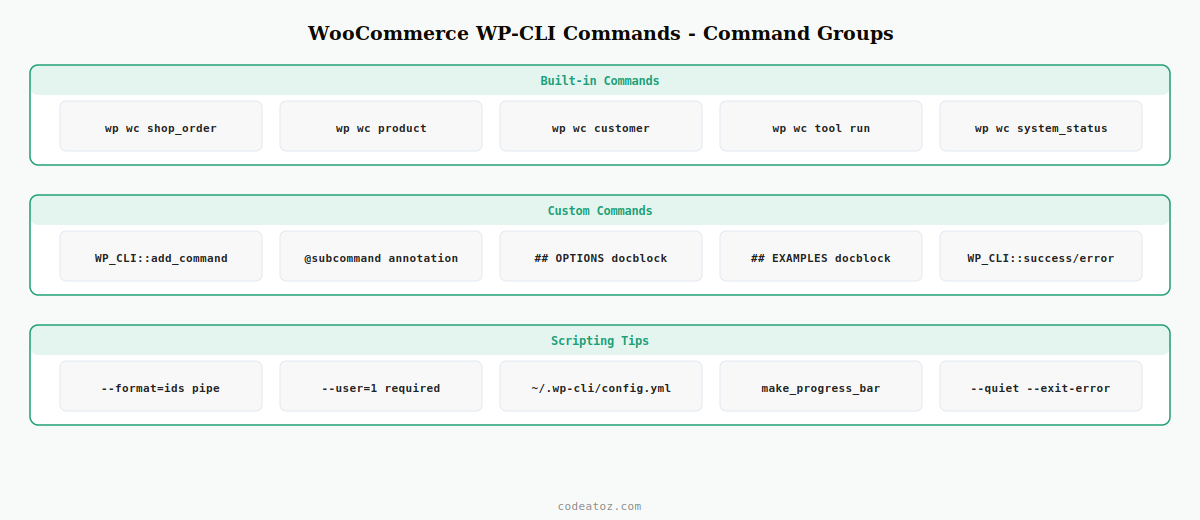
WooCommerce ships with a comprehensive set of WP-CLI commands under the wp wc namespace. These WooCommerce WP-CLI commands interact with the WooCommerce REST API internally, so they respect all WooCommerce business logic, trigger the correct hooks, and work with HPOS-enabled stores automatically. They are the correct tool for any bulk operation that would time out via the WordPress admin.
Essential WooCommerce WP-CLI Commands for Orders
Order management via WooCommerce WP-CLI commands is the most common use case — checking order counts, bulk status updates, and order data inspection without loading the WordPress admin.
# List recent orders — WooCommerce WP-CLI commands
wp wc shop_order list --status=processing --per_page=20 --user=1

# Get a specific order as JSON
wp wc shop_order get 12345 --user=1 --format=json

# Update order status with WooCommerce WP-CLI commands
wp wc shop_order update 12345 --status=completed --user=1

# Count orders by status — useful for WooCommerce WP-CLI commands dashboards
wp wc shop_order list --status=on-hold --format=count --user=1

# Bulk export orders to CSV
wp wc shop_order list --per_page=100 --format=csv > orders-export.csv

# Delete test orders in bulk using WooCommerce WP-CLI commands
wp wc shop_order list --status=pending --per_page=50 --format=ids --user=1
  | xargs -I{} wp wc shop_order delete {} --force=true --user=1
WooCommerce WP-CLI Commands for Products
Product operations via WooCommerce WP-CLI commands are essential for bulk catalogue management — especially on stores with thousands of SKUs where the WP Admin is too slow.
# List all published products
wp wc product list --status=publish --per_page=100 --user=1

# Create a product with WooCommerce WP-CLI commands
wp wc product create
  --name="Test Product"
  --type=simple
  --regular_price=19.99
  --status=publish
  --user=1

# Update product price in bulk using WooCommerce WP-CLI commands
for id in $(wp wc product list --category=12 --format=ids --user=1); do
  wp wc product update $id --regular_price=24.99 --user=1
done

# Search products by SKU
wp wc product list --sku=SKU-001 --user=1

# Delete all draft products with WooCommerce WP-CLI commands
wp wc product list --status=draft --format=ids --user=1
  | xargs -I{} wp wc product delete {} --force=true --user=1
WooCommerce WP-CLI Commands for System Maintenance
The wp wc tool group provides access to WooCommerce’s internal tools via WooCommerce WP-CLI commands — the same tools available under WooCommerce → Status → Tools in the admin.
# List all available tools
wp wc tool list --user=1

# Clear transients with WooCommerce WP-CLI commands
wp wc tool run clear_transients --user=1

# Recount product stock with WooCommerce WP-CLI commands
wp wc tool run recount_terms --user=1

# Create missing WooCommerce pages
wp wc tool run install_pages --user=1

# Clear customer sessions — useful WooCommerce WP-CLI commands for session bloat
wp wc tool run clear_sessions --user=1

# System status — show server environment for WooCommerce WP-CLI commands debugging
wp wc system_status --user=1 --format=json

# Check HPOS migration status
wp wc hpos verify-order-data --all --user=1
Registering Custom WooCommerce WP-CLI Commands in Your Plugin
Custom WooCommerce WP-CLI commands let you expose your plugin’s functionality to the command line — bulk operations, data migrations, cache warmup, and diagnostic tools that are too slow or complex for the WordPress admin.
<?php
// Register custom WooCommerce WP-CLI commands in your plugin
if ( defined( 'WP_CLI' ) && WP_CLI ) {
    WP_CLI::add_command( 'wc-mystore', 'CAZ_WC_CLI_Commands' );
}

class CAZ_WC_CLI_Commands {

    /**
     * Sync all product prices from the ERP
     *
     * ## OPTIONS
     * [--dry-run]
     * : Preview changes without saving
     *
     * ## EXAMPLES
     * wp wc-mystore sync-prices
     * wp wc-mystore sync-prices --dry-run
     *
     * @subcommand sync-prices
     */
    public function sync_prices( array $args, array $assoc_args ): void {
        $dry_run = WP_CLIUtilsget_flag_value( $assoc_args, 'dry-run', false );
        WP_CLI::log( 'Starting price sync WooCommerce WP-CLI commands...' );
        $count = 0;
        $products = wc_get_products([ 'limit' => -1, 'return' => 'ids' ]);
        $progress = WP_CLIUtilsmake_progress_bar( 'Syncing', count( $products ) );

        foreach ( $products as $id ) {
            // fetch price from ERP...
            $new_price = '19.99'; // replace with real ERP call
            if ( ! $dry_run ) {
                $p = wc_get_product( $id );
                $p->set_regular_price( $new_price );
                $p->save();
            }
            $count++;
            $progress->tick();
        }

        $progress->finish();
        WP_CLI::success( "WooCommerce WP-CLI commands: synced {$count} products." . ( $dry_run ? ' (dry run)' : '' ) );
    }

    /**
     * Export order report as CSV
     * @subcommand export-orders
     */
    public function export_orders( array $args, array $assoc_args ): void {
        $status = $assoc_args['status'] ?? 'completed';
        $orders = wc_get_orders([ 'status' => $status, 'limit' => -1 ]);
        $file   = 'orders-' . $status . '-' . date('Y-m-d') . '.csv';
        $fp     = fopen( $file, 'w' );
        fputcsv( $fp, ['ID','Status','Total','Date','Customer'] );
        foreach ( $orders as $order ) {
            fputcsv( $fp, [
                $order->get_order_number(),
                $order->get_status(),
                $order->get_total(),
                $order->get_date_created()->date('Y-m-d'),
                $order->get_billing_email(),
            ]);
        }
        fclose( $fp );
        WP_CLI::success( "WooCommerce WP-CLI commands: exported to {$file}" );
    }
}
The WooCommerce WP-CLI commands documentation lists all available commands and their parameters. The WP-CLI commands cookbook covers custom command registration patterns. The WP-CLI handbook covers global flags, output formatting, and scripting with WP-CLI. See our WooCommerce product CSV import guide for a practical example of custom WooCommerce WP-CLI commands, and our WooCommerce HPOS migration guide for HPOS-specific WP-CLI commands.
💡 Always pass --user=1 (or the ID of an admin user) to WooCommerce WP-CLI commands that hit the REST API internally. Without a user context, WooCommerce REST API commands return a permission error. You can set a default in ~/.wp-cli/config.yml with user: 1 to avoid passing it on every command.
Frequently Asked Questions — WooCommerce WP-CLI Commands
What WooCommerce WP-CLI commands are available?
WooCommerce WP-CLI commands are grouped under wp wc and cover: shop_order (list, get, create, update, delete), product (list, get, create, update, delete), customer (list, get, create, update), coupon (create, list), product_cat (create, list), tool (list, run), system_status (view), hpos (migrate-order-data, verify-order-data), and webhook (list, create, get). Run wp wc –help to see the full list of WooCommerce WP-CLI commands available on your installation.
Why do WooCommerce WP-CLI commands require –user?
WooCommerce WP-CLI commands that use the REST API internally require an authenticated user context to check permissions. Pass –user=1 (or any admin user ID) to provide this context. Without it, WooCommerce returns a rest_forbidden error. You can set user: 1 in your ~/.wp-cli/config.yml file to make it the default for all WooCommerce WP-CLI commands on that server without typing it each time.
How do I bulk update WooCommerce products with WP-CLI?
Use wp wc product list with –format=ids to get product IDs, pipe them through xargs or a shell loop, and call wp wc product update for each ID. For large catalogues, register a custom WooCommerce WP-CLI command that iterates products in PHP with a progress bar using WP_CLIUtilsmake_progress_bar. This avoids shell loop overhead and gives you progress feedback during long bulk WooCommerce WP-CLI commands operations.
How do I register a custom WooCommerce WP-CLI command in my plugin?
Check for WP_CLI constant before registering to avoid loading CLI code in web requests. Call WP_CLI::add_command(‘my-command’, ‘MyCommandClass’) inside the if(defined(‘WP_CLI’) && WP_CLI) block. Create the command class with public methods for each subcommand. Add PHPDoc @subcommand annotations for method-to-subcommand mapping and ## OPTIONS / ## EXAMPLES doc blocks for built-in help. Your WooCommerce WP-CLI commands appear immediately after registering.
Can WooCommerce WP-CLI commands be used in deployment scripts?
Yes — WooCommerce WP-CLI commands are ideal for deployment scripts. Common deployment uses: wp wc tool run clear_transients after a deploy, wp wc hpos verify-order-data to confirm HPOS integrity, wp woocommerce install to set up pages on a new environment, and custom WooCommerce WP-CLI commands that seed test data or run database migrations. Use –quiet flag to suppress output and –exit-error to fail the deployment script if a command fails.
How do I output progress in custom WooCommerce WP-CLI commands?
Use WP_CLIUtilsmake_progress_bar($label, $count) to create a progress bar, call $bar->tick() inside the loop, and $bar->finish() when done. Use WP_CLI::log() for informational output, WP_CLI::success() for completion messages, WP_CLI::warning() for non-fatal issues, and WP_CLI::error() to halt with a failure. Use WP_CLI::line() for plain output that can be captured and piped in shell scripts using your WooCommerce WP-CLI commands.
Need Custom WooCommerce WP-CLI Tools Built?
CodeAtoZ builds custom WooCommerce WP-CLI commands for bulk operations, deployment automation, ERP sync, and database maintenance.