WooCommerce HPOS Migration — Enable & Verify High-Performance Order Storage (2026)
WooCommerce HPOS migration — switching from the legacy wp_posts order storage to the dedicated wc_orders table — is one of the most impactful performance upgrades you can make on a WooCommerce store. The WooCommerce HPOS migration reduces admin load times, unlocks faster order queries, and future-proofs your store for WooCommerce 9.x and beyond. This guide covers every step of a safe WooCommerce HPOS migration: checking plugin compatibility, running the synchronisation, enabling HPOS, verifying data integrity, and fixing the most common issues developers encounter when incompatible plugins still write to the posts table.
High-Performance Order Storage (HPOS) was introduced in WooCommerce 7.1 and became the recommended storage engine from WooCommerce 8.0 onwards. Instead of storing orders as WordPress posts in wp_posts and order meta in wp_postmeta, a WooCommerce HPOS migration moves all order data into purpose-built relational tables: wc_orders, wc_order_addresses, wc_order_operational_data, and wc_orders_meta. These tables are indexed specifically for order queries, making the Orders admin list, reporting, and REST API order endpoints dramatically faster on stores with thousands of orders.
Before starting a WooCommerce HPOS migration on a live store, always run it on a full staging environment first. The migration synchronises order data between the old and new tables rather than replacing it, so both storage engines run in parallel during the transition. This means a rollback to legacy storage is possible if any plugin incompatibility surfaces after enabling HPOS.
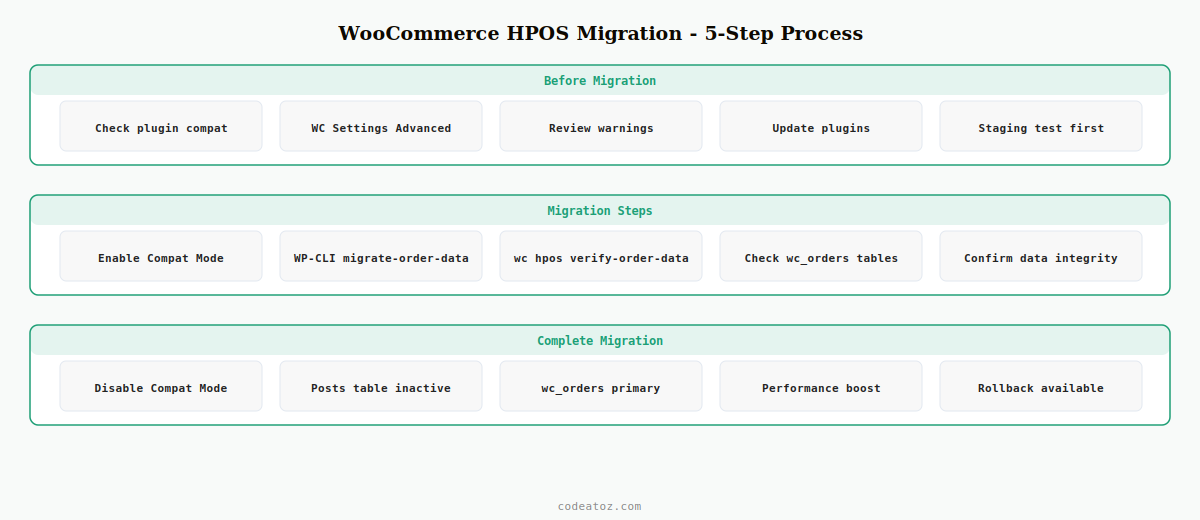
Step 1: Check Plugin Compatibility Before WooCommerce HPOS Migration
The biggest risk in any WooCommerce HPOS migration is plugins that query the wp_posts table directly using raw SQL or WP_Query rather than WooCommerce’s order API. These plugins will silently miss orders after the WooCommerce HPOS migration unless they are updated or replaced.
WooCommerce flags incompatible plugins automatically. Go to WooCommerce → Settings → Advanced → Features and look for the compatibility warning under the HPOS option. Any plugin listed there must be updated before completing the WooCommerce HPOS migration.
// INCOMPATIBLE: direct wp_posts query — breaks after WooCommerce HPOS migration
$orders = $wpdb->get_results(
    "SELECT ID FROM wp_posts WHERE post_type='shop_order' AND post_status='wc-processing'"
);

// COMPATIBLE: use WooCommerce order API — works before and after HPOS migration
$orders = wc_get_orders([
    'status' => 'processing',
    'limit'  => -1,
    'return' => 'ids',
]);

// COMPATIBLE: HPOS-safe direct query using the wc_orders table
global $wpdb;
$orders = $wpdb->get_results(
    "SELECT id FROM {$wpdb->prefix}wc_orders WHERE status='wc-processing' AND type='shop_order'"
);
⚠ The most common incompatible pattern is using WP_Query with post_type => 'shop_order'. After a WooCommerce HPOS migration with the posts table disabled, WP_Query will return zero orders. Search your codebase and all active plugins for post_type.*shop_order before enabling HPOS.
Step 2: Enable Compatibility Mode for the WooCommerce HPOS Migration
WooCommerce provides a compatibility mode that keeps both the posts table and the HPOS orders table synchronised. Enable this before flipping to HPOS-only so that any plugin that hasn’t been updated yet continues to function during the WooCommerce HPOS migration transition period.
// Via WooCommerce Settings UI:
// WooCommerce → Settings → Advanced → Features
// 1. Tick "High-Performance Order Storage (recommended)"
// 2. Tick "Compatibility mode" (keeps posts table in sync during transition)
// 3. Save changes

// Verify via WP-CLI after enabling:
wp option get woocommerce_feature_hpos_orders_enabled
// Should return: yes

// Check sync status of WooCommerce HPOS migration:
wp wc hpos verify-order-data --all
With compatibility mode on, WooCommerce writes every order change to both tables simultaneously. This doubles the write load briefly during the WooCommerce HPOS migration but means any plugin reading from wp_posts still sees current data. Once you have confirmed all plugins are HPOS-compatible, you can turn off compatibility mode to stop the double-write overhead.
Step 3: Run the WooCommerce HPOS Migration Data Sync
For stores with existing orders, WooCommerce must copy all historical order data into the new tables. This is handled automatically when you enable HPOS — WooCommerce queues a background sync job. For large order volumes, the sync can take hours on production. Run it via WP-CLI on a staging environment to get an accurate time estimate first.
# Check how many orders need syncing before WooCommerce HPOS migration
wp wc hpos count-unmigrated-orders

# Run the WooCommerce HPOS migration sync in the foreground
# Add --batch-size=500 for large stores to control memory usage
wp wc hpos migrate-order-data --batch-size=500

# Monitor progress
wp wc hpos verify-order-data --order-id=12345

# After WooCommerce HPOS migration: verify a sample of orders
wp wc hpos verify-order-data --all --verbose 2>&1 | tail -50
💡 On stores with over 50,000 orders, increase PHP memory limit to at least 512MB and set max_execution_time = 300 before running the WooCommerce HPOS migration sync via WP-CLI. The sync runs in CLI context so the web server timeout doesn’t apply, but memory limits do.
Step 4: Verify Data Integrity After WooCommerce HPOS Migration
After the sync completes, verify that the WooCommerce HPOS migration moved all data correctly. WooCommerce includes a built-in verification tool that checks a configurable sample of orders against both tables and reports any discrepancies.
<?php
// Verify a specific order exists correctly in HPOS tables after migration
$order_id = 12345;
$order    = wc_get_order( $order_id );

if ( $order ) {
    // This now reads from wc_orders table after WooCommerce HPOS migration
    echo 'Order status: ' . $order->get_status() . PHP_EOL;
    echo 'Customer:     ' . $order->get_billing_email() . PHP_EOL;
    echo 'Total:        ' . $order->get_total() . PHP_EOL;
    echo 'Storage type: ' . get_class( $order->get_data_store() ) . PHP_EOL;
    // Should show: AutomatticWooCommerceInternalDataStoresOrdersOrdersTableDataStore
}

// Check which storage engine is currently active after WooCommerce HPOS migration
$is_hpos = wc_get_container()
    ->get( AutomatticWooCommerceInternalDataStoresOrdersCustomOrdersTableController::class )
    ->custom_orders_table_usage_is_enabled();

echo 'HPOS active: ' . ( $is_hpos ? 'YES' : 'NO' );
Step 5: Disable Compatibility Mode and Complete the WooCommerce HPOS Migration
Once you have verified data integrity and confirmed all active plugins are HPOS-compatible, disable compatibility mode. This stops the double-write to the legacy wp_posts table and completes the WooCommerce HPOS migration. Order queries now run exclusively against the optimised wc_orders tables.
// WooCommerce → Settings → Advanced → Features
// 1. Ensure "High-Performance Order Storage" remains ticked
// 2. UNTICK "Compatibility mode" once all plugins are verified
// 3. Save

// Post-migration: benchmark order list load time
// wp eval 'echo microtime(true); wc_get_orders(["limit"=>50]); echo " " . microtime(true);'

// Expected improvement after WooCommerce HPOS migration:
// - Orders admin list:  50-80% faster on stores with 10,000+ orders
// - Order REST API:     30-60% faster on filtered queries
// - Reporting queries: 40-70% faster
The official WooCommerce HPOS documentation covers the full schema and migration internals. The WooCommerce HPOS CRUD documentation covers how to build HPOS-compatible custom order types. See our WooCommerce performance optimisation guide for complementary performance improvements, and our WooCommerce hooks reference for HPOS-compatible order hooks.
WooCommerce HPOS Migration: Rollback Procedure
If a critical plugin incompatibility is discovered after completing the WooCommerce HPOS migration, you can roll back. Go to WooCommerce → Settings → Advanced → Features, re-enable compatibility mode first, then untick High-Performance Order Storage. WooCommerce will revert to reading and writing from the wp_posts table. The wc_orders tables remain in the database but are no longer used — data written during the HPOS period is synced back to posts when compatibility mode is active.
✓ HPOS is fully reversible as long as compatibility mode has been running during the WooCommerce HPOS migration period. Never disable compatibility mode before verifying all plugins are compatible — once compatibility mode is off and HPOS is live, orders written to wc_orders are not automatically backfilled to wp_posts.
Frequently Asked Questions — WooCommerce HPOS Migration
What is WooCommerce HPOS migration and should I do it?
WooCommerce HPOS migration moves order data from the WordPress posts table to dedicated wc_orders tables optimised for order queries. It is strongly recommended for all stores, especially those with more than 1,000 orders. The WooCommerce HPOS migration delivers significantly faster order admin pages, reporting, and REST API performance. It is the default storage engine from WooCommerce 8.0 onwards.
How long does a WooCommerce HPOS migration take?
The WooCommerce HPOS migration sync time depends on order volume. Small stores under 10,000 orders typically sync in under 10 minutes. Stores with 100,000+ orders may take several hours. Run the migration via WP-CLI with wp wc hpos migrate-order-data rather than through the UI to avoid web server timeouts. Use –batch-size=500 to control memory usage during the WooCommerce HPOS migration.
Will the WooCommerce HPOS migration break my plugins?
Plugins that use wc_get_orders(), WC_Order_Query, or WooCommerce’s order API are fully compatible with a WooCommerce HPOS migration. Plugins that query wp_posts directly using raw SQL or WP_Query with post_type shop_order will break. WooCommerce flags incompatible plugins in the Settings Advanced Features panel before you enable HPOS. Enable compatibility mode to keep the posts table in sync while plugin updates are applied.
Can I reverse a WooCommerce HPOS migration?
Yes, provided compatibility mode was active during the WooCommerce HPOS migration period. Re-enable compatibility mode in WooCommerce Settings Advanced Features before disabling HPOS to ensure all order data written to wc_orders is synced back to wp_posts. Once compatibility mode is confirmed active and sync is complete, untick High-Performance Order Storage to revert to legacy storage.
What is compatibility mode in a WooCommerce HPOS migration?
Compatibility mode keeps both the wp_posts table and the new wc_orders tables in sync during and after a WooCommerce HPOS migration. Every order create, update, and delete operation writes to both tables simultaneously. This protects against plugin incompatibilities during the transition but adds a small write overhead. Disable compatibility mode only after confirming all plugins are fully HPOS-compatible.
How do I check my custom code is ready for WooCommerce HPOS migration?
Search your codebase for post_type.*shop_order, WP_Query with shop_order, and direct wpdb queries against wp_posts or wp_postmeta filtering by shop_order. Replace any matches with wc_get_orders() or the WC_Order_Query class. Any code using $order->get_meta(), update_post_meta() with an order ID, or get_post() on an order must be updated to use WooCommerce’s order data store API before completing the WooCommerce HPOS migration.
Need Help With Your WooCommerce HPOS Migration?
CodeAtoZ audits your plugins and custom code for HPOS compatibility, runs the migration on staging, and verifies data integrity before going live.