The Complete Guide to Shopware 6 Theme Development in 2026
Build custom Shopware 6 themes using Twig template overrides, SCSS with Bootstrap 5, webpack bundling, and the theme.json configuration system.
Twig block overrides
SCSS & Bootstrap
theme.json config
JS Storefront plugins
Compile & deploy
This guide covers Shopware 6 theme development from the directory structure through to Twig block overrides, SCSS customisation against Bootstrap 5, JavaScript Storefront plugins, and deploying compiled assets to a live sales channel. All examples target Shopware 6.6 with the default Storefront theme as the parent.
Shopware 6 theme development differs from most e-commerce platform theming because it combines three layers: Twig template inheritance for HTML structure, SCSS with Bootstrap 5 for styles, and webpack-bundled JavaScript via Shopware’s own Storefront plugin system. Understanding how these three layers interact is the prerequisite for effective custom theme work.
The Storefront theme — Shopware’s built-in default — is the recommended parent for all custom Shopware 6 theme development projects. Never modify Storefront files directly. Instead, create a child theme plugin that overrides only the specific templates and styles you need to change. This keeps your changes upgrade-safe and easy to maintain.
Shopware 6 Theme Development: Theme Structure and Manifest
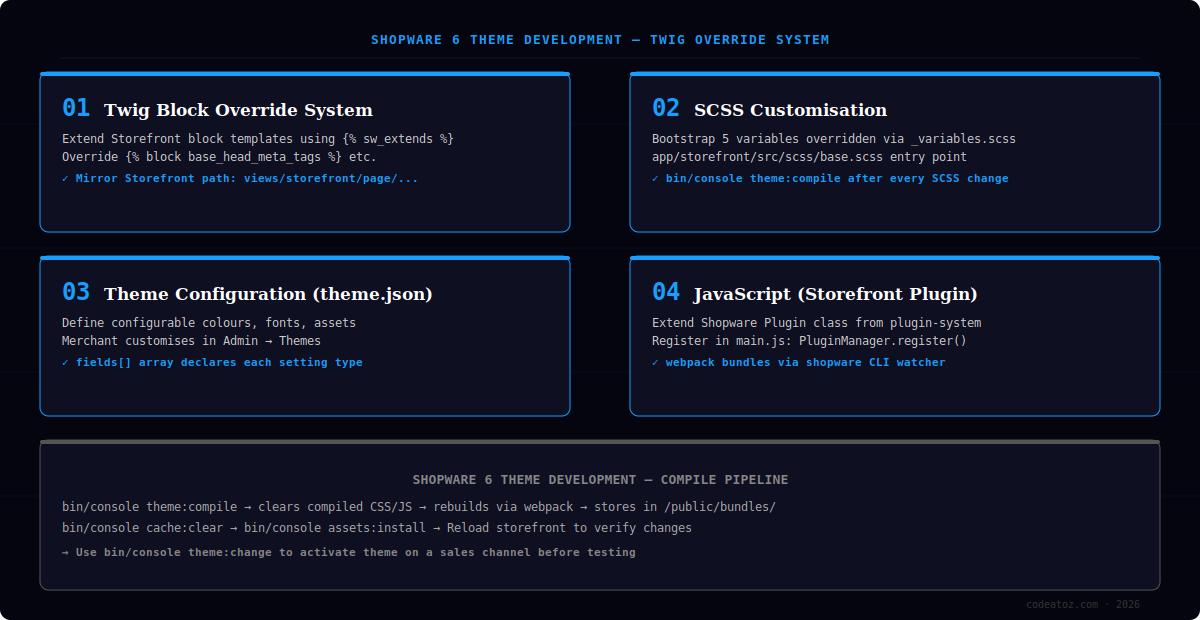
A Shopware 6 theme development project is structured as a plugin. The key difference from a regular plugin is the theme.json file at the plugin root, which declares the directory as a theme and exposes configuration to the Admin panel. Without theme.json, Shopware treats the directory as a regular plugin and skips the theme compilation pipeline.
src/Resources/theme.json— theme manifest with configurable fieldssrc/Resources/views/storefront/— Twig template overridessrc/Resources/app/storefront/src/scss/— SCSS entry point and variablessrc/Resources/app/storefront/src/js/— JavaScript Storefront pluginssrc/Resources/app/storefront/dist/— compiled assets (generated, not committed)
Run bin/console theme:change --all YourTheme to activate your Shopware 6 theme development theme across all sales channels at once. Without this command, your theme is installed but not applied — a common source of confusion during first-time setup.
Shopware 6 Theme Development: Twig Block Overrides
Shopware 6 theme development uses a block override system built on Twig’s template inheritance. Every Storefront template is broken into named blocks — you override only the specific blocks you need to change. The {% sw_extends %} tag (not standard Twig {% extends %}) ensures Shopware’s multi-layer inheritance chain is preserved, allowing plugins and themes to stack their overrides correctly.
{# views/storefront/page/product-detail/index.html.twig #}
{% sw_extends '@Storefront/storefront/page/product-detail/index.html.twig' %}

{% block page_product_detail_buy_form %}
  {# Prepend custom badge above the buy form #}
  {% if page.product.customFields.custom_badge %}
    <div class="custom-product-badge">
      {{ page.product.customFields.custom_badge }}
    </div>
  {% endif %}
  {{ parent() }}
{% endblock %}Shopware 6 Theme Development: SCSS and Bootstrap 5
The Storefront theme is built on Bootstrap 5. All Shopware 6 theme development SCSS work starts by overriding Bootstrap variables in a _variables.scss file before the Storefront base SCSS is imported. This gives you control over colours, typography, spacing, and breakpoints without duplicating styles.
// app/storefront/src/scss/base.scss
// 1. Override Bootstrap variables BEFORE importing Storefront
$primary: #2563EB;
$body-bg: #ffffff;
$font-family-base: 'Inter', sans-serif;

// 2. Import Storefront base (picks up your variable overrides)
@import "~vendor/shopware/storefront/Resources/app/storefront/src/scss/base";

// 3. Add your custom component styles
@import "components/header";
@import "components/product-card";
Always run bin/console theme:compile after SCSS changes — Shopware does not hot-reload SCSS in production mode. For development, use ./bin/watch-storefront.sh which runs the webpack watcher with live reload. Never edit compiled CSS in dist/ — it gets overwritten on every compile.
Shopware 6 Theme Development: JavaScript Storefront Plugins
Shopware’s JavaScript layer uses a custom plugin system based on classes extending Plugin from src/plugin-system/plugin.class. In Shopware 6 theme development, you register JS plugins for DOM elements using the PluginManager. Shopware automatically initialises registered plugins when their selector element appears in the DOM.
All JS is bundled via webpack during bin/console theme:compile. The entry point is app/storefront/src/main.js. For development, the watch-storefront.sh script provides hot module replacement. Consult the Shopware JS plugin documentation and the Bootstrap 5 Sass customisation guide and the Shopware theme development reference for the full lifecycle API.
Stores requiring more complex frontend architecture — such as Vue.js components in the Admin or headless frontends via the WooCommerce REST API — may benefit from a broader review of Shopware 6 theme development options with our Shopware development team.
Frequently Asked Questions About Shopware 6 Theme Development
What is Shopware 6 theme development?
Shopware 6 theme development is the process of building custom storefronts for Shopware 6 using Twig template overrides, SCSS customisation against the Bootstrap 5 base, and JavaScript Storefront plugins. Themes in Shopware are plugin-based, compiled via webpack, and managed through the Admin Themes panel where merchants select which theme applies to each sales channel.
How is Shopware 6 theme development different from WordPress themes?
Shopware 6 theme development requires a compile step — you cannot edit a file and refresh the browser without running theme compilation. WordPress themes are PHP and CSS files that render directly. Shopware themes are compiled via webpack, use a Twig block override system rather than template hierarchy, and have no equivalent to WordPress’s get_template_part() hook system.
Do I need to know Bootstrap 5 for Shopware 6 theme development?
Yes, practically. Shopware’s Storefront theme is built on Bootstrap 5, so Shopware 6 theme development without Bootstrap knowledge means fighting the existing grid, utility class system, and component structure. You do not need to know every Bootstrap API, but understanding variables, the grid, and utility classes saves significant time when customising layouts.
What is theme.json in Shopware 6 theme development?
The theme.json file is the manifest that tells Shopware a plugin directory is a theme rather than a regular plugin. It declares configurable fields — colours, fonts, asset paths — that merchants can adjust in the Admin Themes panel without code changes. It also specifies the parent theme (usually @Storefront) and the SCSS and JS entry points for webpack compilation.
How long does Shopware 6 theme development take?
A simple Shopware 6 theme development project — brand colours, typography, header and footer customisation — takes three to five days for an experienced developer. A fully custom storefront design from mockup to production takes three to six weeks depending on the number of unique templates and interactive components required.
Can Shopware 6 theme development support multiple brands on one installation?
Yes. Shopware 6 supports multiple sales channels, each with its own theme assigned. Shopware 6 theme development can produce multiple themes — one per brand — installed as separate plugins on the same Shopware instance. Each theme compiles its own CSS and JS bundle independently, so brand-specific styles do not leak across channels.
Need a Custom Shopware 6 Theme Built?
We build Shopware 6 themes from the ground up — pixel-perfect, compiled, and ready for multi-channel deployment. Fixed-price scoping.
Bootstrap 5 base
webpack compiled
Multi-channel ready