How to Hide Price for Guests in WooCommerce — Force Login to See Prices (2026)
The ability to hide price for guests in WooCommerce is the most common requirement for B2B and wholesale stores — trade customers must register and log in before they can see pricing or add products to cart. This guide covers both the PHP code method (for developers who want full control) and the plugin method (for stores that need a configuration-based solution) for WooCommerce hide price for guests. You will also learn how to replace the price with a custom login prompt, remove the add to cart button, and apply the hide price for guests logic selectively by product category or individual product.
A WooCommerce hide price for guests implementation works by hooking into WooCommerce’s price display filters and the add-to-cart button filters, checking whether the current visitor is logged in, and returning empty strings or custom HTML instead of the real price and button. Done correctly, the product page still loads and looks professional — guests see a compelling login prompt rather than a broken layout.
Method 1: WooCommerce Hide Price for Guests with PHP Code
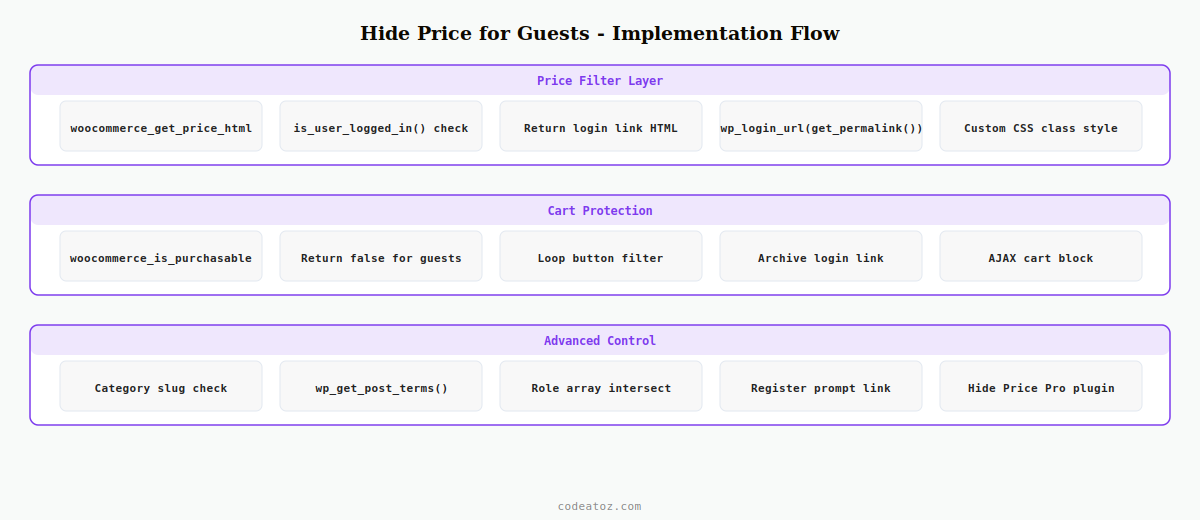
The PHP code method to hide price for guests in WooCommerce uses three filters: woocommerce_get_price_html to replace the displayed price, woocommerce_is_purchasable to remove the add to cart button, and woocommerce_loop_add_to_cart_link to replace the button in product archives with a login link.
<?php
// Add to functions.php or a custom plugin to hide price for guests in WooCommerce

// Step 1: Replace price display with login prompt for guests
add_filter( 'woocommerce_get_price_html', 'caz_hide_price_for_guests', 10, 2 );

function caz_hide_price_for_guests( string $price, WC_Product $product ): string {
    // Only hide price for guests — logged-in users see the real price
    if ( is_user_logged_in() ) return $price;

    return '<a href="' . esc_url( wp_login_url( get_permalink() ) ) . '" class="caz-login-to-see-price">'
        . __( 'Login to see prices', 'caz-b2b' )
        . '</a>';
}

// Step 2: Remove add to cart for guests — WooCommerce hide price for guests
add_filter( 'woocommerce_is_purchasable', 'caz_hide_add_to_cart_for_guests', 10, 2 );

function caz_hide_add_to_cart_for_guests( bool $purchasable, WC_Product $product ): bool {
    if ( ! is_user_logged_in() ) return false;
    return $purchasable;
}

// Step 3: Replace archive add-to-cart button with login link
add_filter( 'woocommerce_loop_add_to_cart_link', 'caz_loop_login_link_for_guests', 10, 2 );

function caz_loop_login_link_for_guests( string $button, WC_Product $product ): string {
    if ( is_user_logged_in() ) return $button;

    return '<a href="' . esc_url( wp_login_url( get_permalink( $product->get_id() ) ) ) . '"
        class="button caz-login-btn">'
        . __( 'Login to purchase', 'caz-b2b' )
        . '</a>';
}
💡 The woocommerce_is_purchasable filter is the most important part of a WooCommerce hide price for guests implementation. Without it, a determined guest could add a product to cart via a direct URL like /cart/?add-to-cart=123 even if the price is hidden on the product page. Always combine price hiding with purchasability restriction.
Hide Price for Guests: Category and Product-Level Control
A global WooCommerce hide price for guests rule works for pure B2B stores, but many stores need to hide prices only for specific categories (e.g. Trade Products) while leaving retail products visible. Add a category check to the filter:
function caz_hide_price_for_guests( string $price, WC_Product $product ): string {
    if ( is_user_logged_in() ) return $price;

    // Only hide price for guests in the 'trade-products' category
    $trade_categories = apply_filters( 'caz_hide_price_categories', [ 'trade-products', 'wholesale' ] );
    $product_cats     = wp_get_post_terms( $product->get_id(), 'product_cat', [ 'fields' => 'slugs' ] );

    if ( empty( array_intersect( $trade_categories, $product_cats ) ) ) {
        return $price;  // Not a trade category — show price to all
    }

    return '<a href="' . esc_url( wp_login_url( get_permalink() ) ) . '" class="caz-login-price">'
        . __( 'Login to see trade prices', 'caz-b2b' )
        . '</a>';
}
Hide Price for Guests: Role-Based Visibility
Some stores need to go further than a binary logged-in/guest check — they need to hide price for guests and for standard retail customers, showing prices only to approved wholesale accounts. Combine the hide price for guests logic with a role check:
function caz_hide_price_for_guests_and_retail( string $price, WC_Product $product ): string {
    $approved_roles = apply_filters( 'caz_approved_price_roles', [
        'wholesale_customer',
        'trade_customer',
        'administrator',
    ]);

    $user  = wp_get_current_user();
    $roles = (array) $user->roles;

    // Hide price for guests (not logged in) AND for unapproved roles
    if ( empty( array_intersect( $approved_roles, $roles ) ) ) {
        $register_url = get_permalink( wc_get_page_id( 'myaccount' ) ) . 'register/';
        return '<a href="' . esc_url( $register_url ) . '" class="caz-register-prompt">'
            . __( 'Register for trade account to see prices', 'caz-b2b' )
            . '</a>';
    }

    return $price;
}
Method 2: WooCommerce Hide Price for Guests with Hide Price Pro Plugin
For stores that need the complete WooCommerce hide price for guests experience without writing PHP — including per-product overrides, custom login messages, AJAX cart protection, and a dedicated configuration panel — the Hide Price Pro plugin handles everything through a point-and-click interface.
Hide Price Pro — WooCommerce Price Visibility Plugin
Hide price for guests, by user role, by category, or per-product. Login prompt customisation, add to cart protection, and HPOS compatible.
Hide Price Pro extends the WooCommerce hide price for guests PHP logic above with additional features: a product-level override to show or hide the price regardless of the global setting, a custom “login to see price” message editor per product or category, AJAX add-to-cart protection, and compatibility with WooCommerce HPOS, WooCommerce Blocks, and major theme frameworks. The WooCommerce pricing documentation covers the full set of price filters. The WordPress is_user_logged_in() documentation explains the authentication check used throughout. See our WooCommerce B2B wholesale pricing guide for role-based pricing that works alongside hide price for guests.
✓ Best practice: always combine the WooCommerce hide price for guests price filter with the woocommerce_is_purchasable filter. Hiding the price display without blocking purchases means guests can still add products to cart via direct URL. Both filters together give complete WooCommerce hide price for guests protection.
Frequently Asked Questions — WooCommerce Hide Price for Guests
How do I hide price for guests in WooCommerce without a plugin?
Add the woocommerce_get_price_html filter to replace the price with a login link for non-logged-in visitors. Add the woocommerce_is_purchasable filter to return false for guests so the add to cart button is removed. Add the woocommerce_loop_add_to_cart_link filter to replace the archive button with a login link. These three filters together implement complete WooCommerce hide price for guests functionality without any plugin.
Will hiding price for guests affect my WooCommerce SEO?
Hiding price for guests via PHP filters only affects the rendered HTML for non-logged-in visitors. Product pages still have titles, descriptions, and structured data visible to search engines and logged-in users. WooCommerce hide price for guests does not remove the product from the sitemap or prevent Google from indexing the page. However, Google cannot see prices in schema markup when prices are hidden, which means rich snippets with pricing may not display for those products.
Can I hide price for guests on specific categories only?
Yes — add a category check inside the woocommerce_get_price_html filter using wp_get_post_terms() to get the product’s categories and compare them to an array of trade category slugs. Only apply the WooCommerce hide price for guests logic when the product belongs to a trade category. This pattern lets retail products remain fully visible while trade products require login to see pricing.
How do I replace the price with a custom “login to see price” message?
Return HTML from the woocommerce_get_price_html filter instead of a plain string. Include an anchor tag linking to wp_login_url(get_permalink()) so the customer is redirected back to the product page after logging in. Style the anchor with a custom CSS class. Hide Price Pro provides a configurable message editor with product and category-level overrides for WooCommerce hide price for guests messages.
Does WooCommerce hide price for guests work with HPOS?
Yes — the WooCommerce hide price for guests implementation uses price display filters and user role checks, neither of which is affected by order storage. HPOS changes how orders are stored but has no effect on product price display or cart access. Both the PHP code method and Hide Price Pro work identically on WooCommerce stores with HPOS enabled or disabled.
Can guests still add products to cart even with price hidden?
Yes, if you only hide the price display without blocking purchases. A guest who knows the product ID can add it to cart via the URL /cart/?add-to-cart=123 even if the price shows as a login link on the product page. Always add the woocommerce_is_purchasable filter returning false for guests alongside the price hiding filter for complete WooCommerce hide price for guests protection. Hide Price Pro includes AJAX cart protection that blocks all add-to-cart attempts for non-qualifying users.
Need Hide Price for Guests on Your WooCommerce Store?
Hide Price Pro handles everything — price visibility by role, category, and product, with a custom login prompt and complete add-to-cart protection.