How to Sync WooCommerce Orders to ERPNext with CAZ WooSync
Every WooCommerce order becomes a Sales Order, Sales Invoice, and Payment Entry in ERPNext automatically — with refunds mapped to credit notes and coupons to Pricing Rules.
Invoice + Payment Entry
Refund → Credit Note
Coupon → Pricing Rule
Setup checklist
Troubleshooting
If you want to sync WooCommerce orders to ERPNext, CAZ WooSync handles the full accounting pipeline automatically. Every WooCommerce order maps to an ERPNext Sales Order. Paid orders automatically generate a Sales Invoice and a reconciled Payment Entry. Refunds create credit notes. Coupons sync to Pricing Rules. The entire sync WooCommerce orders to ERPNext flow is driven by real-time webhooks with a queue-based retry system.
The ability to sync WooCommerce orders to ERPNext accurately is the centrepiece of any WooCommerce-ERP integration. Without it, finance teams are manually re-entering orders, reconciliation takes hours every month, and audit trails are incomplete. CAZ WooSync eliminates all of that — from the moment a WooCommerce order is placed to the Payment Entry being posted in ERPNext, every step is automated.
Sync WooCommerce Orders to ERPNext: The Sales Order Flow
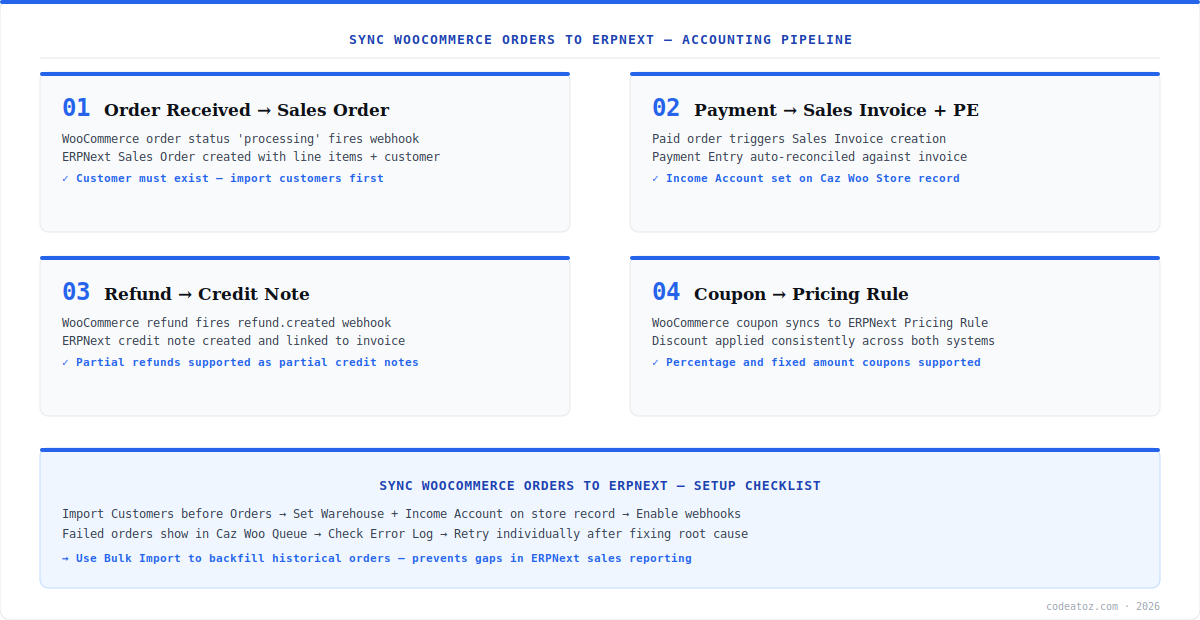
When you sync WooCommerce orders to ERPNext with CAZ WooSync, a WooCommerce order at status processing fires a webhook that creates an ERPNext Sales Order. The Sales Order includes all line items with their SKUs, quantities, prices, the customer record (synced or looked up by email), the shipping address, and the WooCommerce order ID as a reference field for traceability.
The Sales Order is the canonical document in ERPNext’s order-to-cash process. From it, ERPNext can generate Delivery Notes for fulfilment and Sales Invoices for accounting. CAZ WooSync automates the Sales Invoice and Payment Entry creation for paid orders — meaning when you sync WooCommerce orders to ERPNext, the accounting entries are posted without any manual steps.
Always import Customers before you sync WooCommerce orders to ERPNext. Orders reference customer records by email — if the customer does not exist in ERPNext yet, the order sync will fail and queue as an error. Run Bulk Import → Customers first, then Bulk Import → Orders. This sequencing prevents the most common setup failure.
Sync WooCommerce Orders to ERPNext: Invoices and Payment Entries
For paid WooCommerce orders, CAZ WooSync goes beyond creating a Sales Order — it also generates the Sales Invoice and Payment Entry needed for complete accounting. This is where sync WooCommerce orders to ERPNext delivers real operational value: your ERPNext financials stay in sync with WooCommerce revenue without any manual posting.
The Income Account used for the Sales Invoice is configured on the Caz Woo Store record. Set this to your correct revenue account in ERPNext before processing live orders. The Payment Entry is auto-reconciled against the Sales Invoice, leaving a clean accounts receivable position. Refer to the ERPNext Sales Invoice documentation for the full accounting flow.
Sync WooCommerce Orders to ERPNext: Refunds and Coupons
Refund handling is one of the most neglected aspects of any sync WooCommerce orders to ERPNext implementation. CAZ WooSync maps WooCommerce refund events to ERPNext credit notes, which reverse the revenue and, if applicable, restore inventory. Partial refunds create partial credit notes against the original Sales Invoice. The credit note is linked to the original invoice for a complete audit trail.
WooCommerce coupons sync to ERPNext Pricing Rules, so discount reporting in ERPNext reflects the same coupons applied in WooCommerce. This completes the picture when you sync WooCommerce orders to ERPNext — every order’s net revenue, including discounts, is accurately represented in ERPNext. The CAZ WooSync GitHub repository documents the full coupon mapping logic.
Sync WooCommerce Orders to ERPNext: Checklist Before Going Live
- Set Income Account on the Caz Woo Store record — required for Sales Invoice creation
- Set Warehouse on the Caz Woo Store record — required for Delivery Note creation
- Run Bulk Import Customers first — orders fail without matching customer records
- Run Bulk Import Products — orders reference item_code from ERPNext Items
- Click Install Webhooks — registers six webhook types including
order.updated - Enable Alert Email in Caz Woo Settings — get notified immediately on sync failures
- Check the ERPNext Sales Order documentation for field mappings and workflow configuration
If orders are not syncing when you try to sync WooCommerce orders to ERPNext, check ERPNext → Settings → Error Log and filter for “CAZ WooSync” entries. The most common causes are a missing Warehouse or Income Account on the store record, or the customer referenced by the order not existing in ERPNext. Fix the root cause, then use Retry in the Queue Dashboard.
Frequently Asked Questions About Syncing WooCommerce Orders to ERPNext
How do I sync WooCommerce orders to ERPNext?
To sync WooCommerce orders to ERPNext, install CAZ WooSync via bench get-app, create a Caz Woo Store record with your WooCommerce URL and API keys, set the Income Account and Warehouse fields, click Install Webhooks, and run a Bulk Import to bring in existing orders. From that point, new WooCommerce orders sync automatically within five minutes of placement.
Does sync WooCommerce orders to ERPNext create invoices automatically?
Yes. When you sync WooCommerce orders to ERPNext via CAZ WooSync, paid orders automatically generate a Sales Invoice and a reconciled Payment Entry in addition to the Sales Order. The Income Account for the invoice is set on the Caz Woo Store record. Unpaid orders create Sales Orders only, with invoices generated when payment is received.
Can I sync WooCommerce orders to ERPNext retroactively?
Yes. The Bulk Import feature at ERPNext → Caz Woosync → Caz Woo Import lets you import historical WooCommerce orders into ERPNext in one click. Select your store, tick Orders, and click Start Import. The importer pulls all orders via the WooCommerce REST API and processes them through the same sync pipeline as live orders. Import Customers and Products first.
How are refunds handled when I sync WooCommerce orders to ERPNext?
When you sync WooCommerce orders to ERPNext, refunds are mapped to ERPNext credit notes. A WooCommerce refund event fires a webhook that creates a credit note linked to the original Sales Invoice. Partial refunds create partial credit notes. The credit note reverses the revenue entry and, if inventory is restocked, triggers a stock return in ERPNext.
Why are some orders failing when I sync WooCommerce orders to ERPNext?
The most common failure when syncing WooCommerce orders to ERPNext is a missing customer or product in ERPNext. Orders reference both by identifier — if the customer or item_code does not exist, the sync fails. Other causes include missing Income Account or Warehouse on the store record, and API rate limit exceeded. Check Caz Woo Queue and ERPNext Error Log for details.
Does sync WooCommerce orders to ERPNext support coupons and discounts?
Yes. When you sync WooCommerce orders to ERPNext via CAZ WooSync, WooCommerce coupons are mapped to ERPNext Pricing Rules. Coupon discounts applied to orders are reflected in the Sales Order and Sales Invoice, so discount reporting in ERPNext matches WooCommerce. Both percentage and fixed-amount coupons are supported.
Sync WooCommerce Orders to ERPNext Automatically
CAZ WooSync handles the full order-to-cash pipeline — Sales Orders, Invoices, Payment Entries, refunds, and coupons. Free, open source.
Payment reconciled
Refund credit notes
Free MIT licence