How to Install and Set Up Hyvä Theme on Magento 2 — Complete Guide
Everything you need to install Hyvä Theme on Magento 2 — from licence purchase to a working storefront. Every command, every config, every common error explained.
This is a practical guide to install Hyvä Theme on Magento 2 — every command you need, in order, with explanations of what each one does and what to do when things go wrong. We’ve done this enough times that we know exactly where people get stuck.
Official documentation you will need during installation:
- Hyvä Theme documentation: docs.hyva.io — official installation guide and module reference
- Magento 2 developer documentation: developer.adobe.com — theme registration reference
- Tailwind CSS installation docs: tailwindcss.com — Tailwind setup for Hyvä child themes
- Alpine.js quick start: alpinejs.dev — the JS framework used throughout Hyvä
Before you start to install Hyvä Theme: Have you run the pre-migration checklist? If you’re installing Hyvä on an existing Magento store (not a fresh install), read Part 1: 7 Things to Check Before a Hyvä Migration first. Installing Hyvä without the pre-audit on an existing store is how migrations go over budget.
Prerequisites to Install Hyvä Theme on Magento 2
- Magento 2.4.4 or newer (2.4.6+ recommended)
- PHP 8.1 or 8.2 (Hyvä does not support PHP 8.0)
- Node.js 18+ and npm installed on your local or build environment
- Composer 2.x
- A Hyvä licence — purchase at
hyva.io - SSH access to your Magento server
How to Install Hyvä Theme — Step by Step
Get Your Licence and Composer Token
Purchase Hyvä Theme from hyva.io. After purchase, log into your Hyvä account and navigate to your licences. You’ll find a Composer authentication token — this is what allows Composer to download the package.
Add this token to your Magento root auth.json file:
{
  "http-basic": {
    "gitlab.hyva.io": {
      "username": "your-token-username",
      "password": "your-token-password"
    }
  }
}
If auth.json doesn’t exist in your Magento root, create it. Never commit this file to version control — add it to .gitignore.
Install via Composer
Run the following command from your Magento root directory:
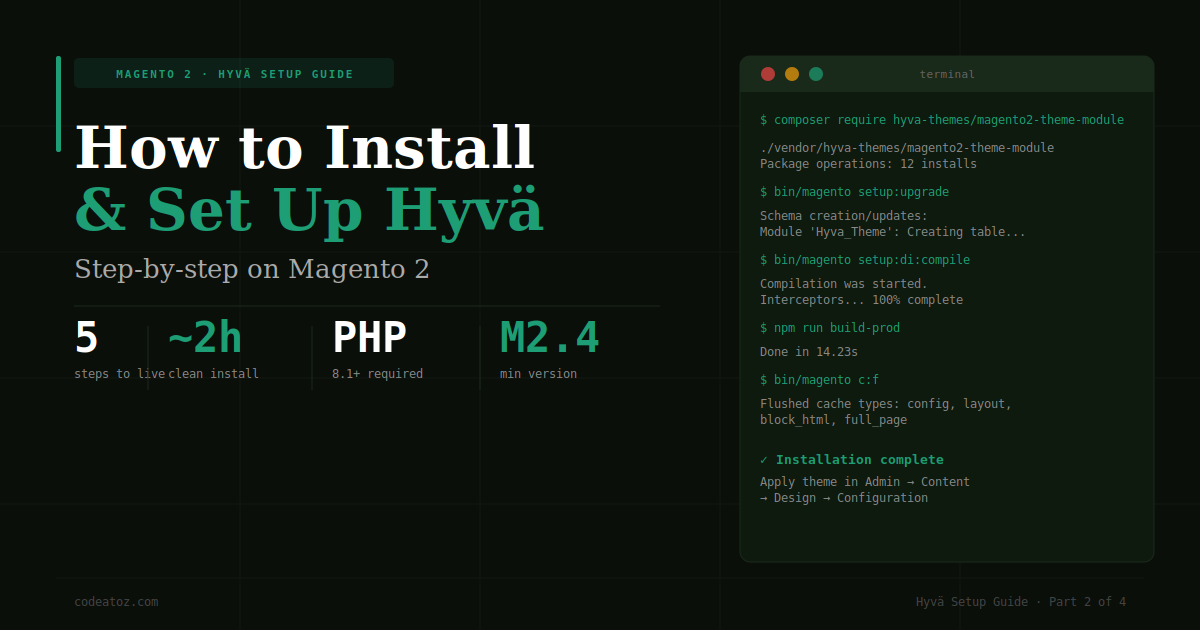
composer require hyva-themes/magento2-theme-moduleThis installs the core Hyvä module and all its dependencies. Depending on your server speed and the number of dependencies, this takes 5–15 minutes. You should see Composer resolving dependencies and installing packages.
If you’re also installing the Hyvä compatibility modules for specific extensions (recommended), install those at the same time:
# Example: Hyvä compat for a common extension
composer require hyva-themes/magento2-YOUR-extension-compatRun Magento Upgrade, Compile, and Deploy
The third step to install Hyvä Theme on Magento 2 is running the standard Magento upgrade and compile sequence:
# Register new modules
bin/magento setup:upgrade

# Compile dependency injection
bin/magento setup:di:compile

# Deploy static content (use -f to force, add locales as needed)
bin/magento setup:static-content:deploy -f en_GB en_US

# Flush cache
bin/magento cache:flush
setup:upgrade registers the Hyvä modules and creates any necessary database tables. setup:di:compile generates the compiled dependency injection configuration — on large stores this can take 10–20 minutes. setup:static-content:deploy deploys the CSS and JS assets.
Production note: On production, run these commands during a maintenance window. Put Magento in maintenance mode first: bin/magento maintenance:enable
Apply the Hyvä Theme in Admin
With the module installed, activate and install Hyvä Theme through the Magento admin panel:
- Go to Content → Design → Configuration
- Select your store view and click Edit
- Under Default Theme, select Hyvä from the dropdown
- Click Save Configuration
- Flush the full page cache:
bin/magento cache:flush full_page
Visit your storefront. A successful install Hyvä Theme shows the default Hyvä design — clean, minimal, and significantly faster than Luma. At this point the store is functional but unstyled to your brand. That’s expected — customisation comes next.
Create Your Child Theme and Configure Tailwind
The final step to fully install Hyvä Theme on Magento 2 is creating a child theme. Never modify the base theme files directly — always create a child theme that inherits from Hyvä:
# Create your theme directory structure
mkdir -p app/design/frontend/YourVendor/YourTheme

# Create registration.php
cat > app/design/frontend/YourVendor/YourTheme/registration.php << 'EOF'
<?php
use Magento\Framework\Component\ComponentRegistrar;
ComponentRegistrar::register(
    ComponentRegistrar::THEME,
    'frontend/YourVendor/YourTheme',
    __DIR__
);
EOF

# Create theme.xml
cat > app/design/frontend/YourVendor/YourTheme/theme.xml << 'EOF'
<theme xmlns:xsi="http://www.w3.org/2001/XMLSchema-instance"
       xsi:noNamespaceSchemaLocation="urn:magento:framework:Config/etc/theme.xsd">
    <title>Your Theme</title>
    <parent>Hyva/default</parent>
</theme>
EOF
Now set up Tailwind CSS for your child theme:
# Copy the Tailwind config and package.json from Hyvä base
cp vendor/hyva-themes/magento2-theme-module/web/tailwind/tailwind.config.js \
   app/design/frontend/YourVendor/YourTheme/web/tailwind/

cp vendor/hyva-themes/magento2-theme-module/web/tailwind/package.json \
   app/design/frontend/YourVendor/YourTheme/web/tailwind/

# Install Node dependencies
cd app/design/frontend/YourVendor/YourTheme/web/tailwind
npm install

# Build for development (with watch)
npm run watch

# Build for production
npm run build-prod
The npm run watch command watches for changes to your template files and rebuilds the CSS automatically. This is your development workflow — make changes to phtml files, see CSS rebuild and styles update.
Common Errors and How to Fix Them
401 Unauthorized during composer install
Your auth.json credentials are wrong, missing, or in the wrong location. Check that the file exists in your Magento root (same directory as composer.json), and that the username and password exactly match what’s shown in your Hyvä account.
PHP version errors
Hyvä requires PHP 8.1 or higher. If you get PHP version errors, check your PHP version with php -v. If you’re on PHP 8.0 or below, you need to upgrade before installing Hyvä. Most managed hosting providers can switch PHP versions from the hosting control panel.
npm not found or Node version errors
Tailwind CSS compilation requires Node.js 18 or newer. If npm isn’t available on your server, you can run the Tailwind build locally and deploy the compiled CSS file. The compiled CSS file lives at web/tailwind/css/output.css in your theme directory.
Theme not showing after applying in admin
Flush all cache types: bin/magento cache:flush. If that doesn’t work, also run bin/magento setup:static-content:deploy -f again. Check that the theme was applied to the correct store view scope.
Blank pages or 500 errors after installation
Check your Magento logs at var/log/exception.log and var/log/system.log. The most common cause is a missing or incompatible extension that throws an error on the frontend. Try disabling recently installed extensions one by one to identify the conflict.
Verifying Your Hyvä Theme Magento 2 Install
After completing all 5 steps to install Hyvä Theme on Magento 2, verify your installation is working correctly:
- Homepage loads without errors and shows the Hyvä design (clean, minimal layout)
- Category pages render product listings correctly
- Product detail pages show all product information
- Add to cart works and mini-cart updates
- Checkout is accessible and functional
- Run a PageSpeed Insights test — you should already see a significantly higher score than Luma even before any optimisation
HYVÄ THEME SERIES — 4 PARTS
Part 1: 7 Things to Check Before Hyvä Migration →
Part 2: How to Install and Set Up Hyvä Theme (you are here)
Part 3: Building Custom Components in Hyvä →
Part 4: Hyvä and Third-Party Extensions →
Need Help to Install Hyvä Theme on Your Store?
We’ve done 50+ Hyvä migrations. We handle the full process — audit, installation, theme build, extension compatibility, and QA — so you get the PageSpeed gains without the headaches.