WooCommerce Variable Product — Add & Manage Variations Programmatically (2026)
Managing a WooCommerce variable product programmatically — creating attributes, generating all possible variation combinations, and setting per-variation prices and stock — is one of the most complex areas of the WooCommerce PHP API. Done incorrectly, a WooCommerce variable product ends up with broken attribute dropdowns, missing variation images, or stock values that don’t display correctly. This guide covers the complete WooCommerce variable product API: creating the parent product, registering product attributes with their terms, generating all variation combinations, setting per-variation SKU, price, stock, weight, and image, and bulk-updating existing variations without breaking the frontend.
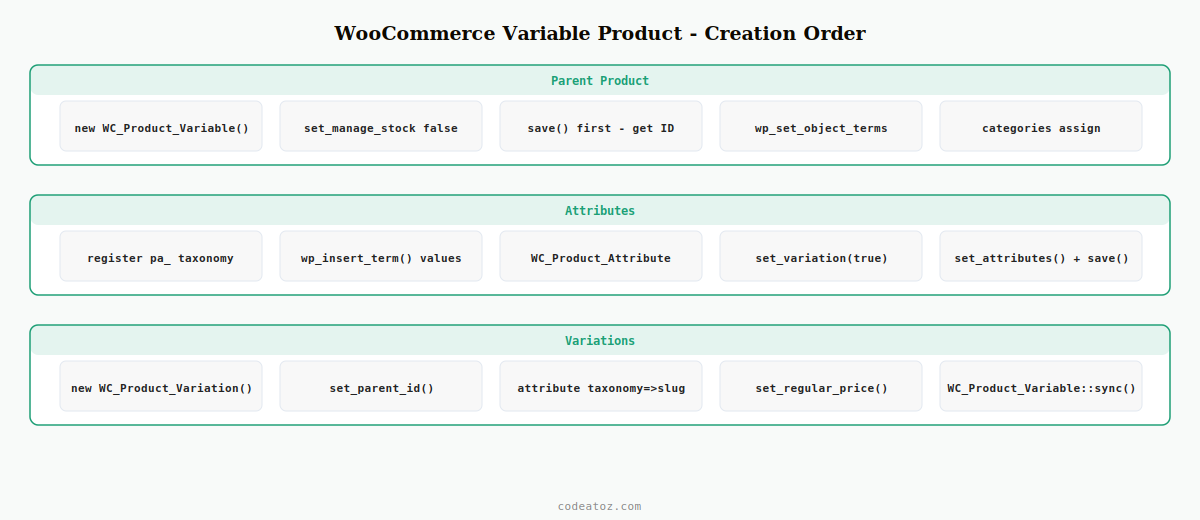
A WooCommerce variable product consists of three layers: the parent WC_Product_Variable, the attribute taxonomy terms (e.g. Size: Small, Medium, Large), and the individual WC_Product_Variation records for each combination (e.g. Small/Red, Small/Blue). Getting the order of operations right is critical — you must save the parent, then add attribute data, then save again, then create variations. Skipping any step produces a variable product that looks broken in the admin or on the frontend.
Step 1: Create the WooCommerce Variable Product Parent
The parent WooCommerce variable product holds the product name, description, categories, and images. Individual prices and stock are stored on the variations — not on the parent. Set type to variable explicitly and save before adding attributes.
<?php
function caz_create_variable_product( array $data ): int {
    $product = new WC_Product_Variable();

    $product->set_name( sanitize_text_field( $data['name'] ) );
    $product->set_sku( sanitize_text_field( $data['sku'] ) );
    $product->set_description( wp_kses_post( $data['description'] ?? '' ) );
    $product->set_short_description( wp_kses_post( $data['short_description'] ?? '' ) );
    $product->set_status( 'publish' );
    $product->set_catalog_visibility( 'visible' );
    $product->set_manage_stock( false );  // stock managed per-variation for WooCommerce variable product

    // Step 1: Save parent first — needed before adding attribute data
    $product_id = $product->save();

    if ( isset( $data['categories'] ) ) {
        wp_set_object_terms( $product_id, $data['categories'], 'product_cat' );
    }

    return $product_id;
}
Step 2: Add Attributes to the WooCommerce Variable Product
Product attributes define the variation dimensions of the WooCommerce variable product. You can use global taxonomy attributes (like pa_colour) or local custom attributes that exist only on this product. Always register global attributes first so the terms exist before you assign them.
function caz_add_product_attributes( int $product_id, array $attributes_data ): void {
    $product    = wc_get_product( $product_id );
    $attributes = [];

    foreach ( $attributes_data as $attr_name => $attr_values ) {
        $taxonomy = 'pa_' . sanitize_title( $attr_name );

        // Register the taxonomy if it doesn't exist yet
        if ( ! taxonomy_exists( $taxonomy ) ) {
            register_taxonomy( $taxonomy, 'product' );
        }

        // Create terms for each value of this attribute
        $term_ids = [];
        foreach ( $attr_values as $value ) {
            $term = get_term_by( 'name', $value, $taxonomy );
            if ( ! $term ) {
                $result  = wp_insert_term( $value, $taxonomy );
                $term_id = is_wp_error( $result ) ? 0 : $result['term_id'];
            } else {
                $term_id = $term->term_id;
            }
            if ( $term_id ) $term_ids[] = $term_id;
        }

        // Assign terms to the WooCommerce variable product
        wp_set_object_terms( $product_id, $term_ids, $taxonomy );

        // Create WC_Product_Attribute object
        $attribute = new WC_Product_Attribute();
        $attribute->set_name( $taxonomy );
        $attribute->set_options( $term_ids );
        $attribute->set_visible( true );
        $attribute->set_variation( true );   // must be true for variation use
        $attributes[] = $attribute;
    }

    $product->set_attributes( $attributes );
    $product->save();
}
Step 3: Create Variations for the WooCommerce Variable Product
With the parent saved and attributes assigned, create each variation. Each WooCommerce variable product variation gets its own SKU, price, stock, weight, and optionally an image. The variation’s attributes must match the parent’s attribute terms exactly.
function caz_add_variation( int $product_id, array $variation_data ): int {
    $variation = new WC_Product_Variation();
    $variation->set_parent_id( $product_id );

    // Set attributes that identify this WooCommerce variable product variation
    // Keys must be taxonomy slugs, values must be term slugs
    $attributes = [];
    foreach ( $variation_data['attributes'] as $attr_name => $attr_value ) {
        $taxonomy                     = 'pa_' . sanitize_title( $attr_name );
        $attributes[ $taxonomy ]      = sanitize_title( $attr_value );
    }
    $variation->set_attributes( $attributes );

    // Per-variation data for the WooCommerce variable product
    $variation->set_sku(             sanitize_text_field( $variation_data['sku'] ) );
    $variation->set_regular_price(   wc_format_decimal( $variation_data['price'] ) );
    $variation->set_manage_stock(    true );
    $variation->set_stock_quantity(  (int) ( $variation_data['stock'] ?? 0 ) );
    $variation->set_stock_status(    ( $variation_data['stock'] ?? 0 ) > 0 ? 'instock' : 'outofstock' );
    $variation->set_weight(          $variation_data['weight'] ?? '' );
    $variation->set_status( 'publish' );

    return $variation->save();
}

// Example: create a WooCommerce variable product with Size and Colour variations
$product_id = caz_create_variable_product([
    'name' => 'Premium Hoodie',
    'sku'  => 'HOODIE-001',
]);

caz_add_product_attributes( $product_id, [
    'size'   => [ 'Small', 'Medium', 'Large' ],
    'colour' => [ 'Black', 'Navy' ],
]);

foreach ( [ ['Small','Black',12], ['Small','Navy',8], ['Medium','Black',15], ['Large','Black',5] ] as [$size,$colour,$stock] ) {
    caz_add_variation( $product_id, [
        'attributes' => [ 'size' => $size, 'colour' => $colour ],
        'sku'        => 'HOODIE-001-' . strtolower($size) . '-' . strtolower($colour),
        'price'      => '39.99',
        'stock'      => $stock,
        'weight'     => '0.5',
    ]);
}

// Sync variation price data to the parent WooCommerce variable product
WC_Product_Variable::sync( $product_id );
The WooCommerce product data store documentation covers the full WC_Product_Variable and WC_Product_Variation API. The WooCommerce product attributes documentation covers global vs local attributes for variable products. See our WooCommerce product CSV import guide for using this variable product API in bulk import scripts, and our WooCommerce hooks reference for variation-specific hooks.
💡 Always call WC_Product_Variable::sync( $product_id ) after creating or updating all variations. This syncs the variable product’s minimum price, maximum price, and stock status from its variations — without it the WooCommerce variable product price range display and in-stock badge will be stale or incorrect on the product page and shop archive.
Frequently Asked Questions — WooCommerce Variable Product
How do I create a WooCommerce variable product programmatically in PHP?
Create a WC_Product_Variable instance and save it first to get a product ID. Then add WC_Product_Attribute objects with set_variation(true) via set_attributes() and save again. Finally create WC_Product_Variation instances for each combination, setting the parent ID, attributes (as taxonomy slug to term slug pairs), price, SKU, and stock, then saving each. Call WC_Product_Variable::sync() after all variations are saved to update the parent WooCommerce variable product price range.
Why are my WooCommerce variable product variations not showing on the frontend?
The most common causes: variation attributes use wrong slugs (must be term slugs, not display names), the WC_Product_Attribute set_variation() is false, the variation status is not publish, or WC_Product_Variable::sync() was not called after saving variations. Also check that each variation’s attribute values exactly match terms assigned to the parent WooCommerce variable product — a mismatch of even one character prevents the variation from being selectable.
How do I bulk-update prices on an existing WooCommerce variable product?
Fetch all variations using $product->get_children() which returns variation IDs. For each ID, load the variation with wc_get_product(), call set_regular_price() with the new value, and save(). After all variations are updated, call WC_Product_Variable::sync($product_id) to update the parent WooCommerce variable product’s price range display. This is the correct approach for bulk price updates on a variable product from an ERP or pricing feed.
How do I add a custom attribute to a WooCommerce variable product?
For a local (product-specific) attribute, create a WC_Product_Attribute with set_name() using a plain string (not a taxonomy slug), set_options() with an array of value strings, set_visible(true), and set_variation(true). For a global attribute shared across products, register a pa_ taxonomy and use the taxonomy slug as the attribute name. Both types work on a WooCommerce variable product but only global attributes can be used as faceted filters in WooCommerce layered navigation.
How do I get all variations of a WooCommerce variable product in PHP?
Load the parent with wc_get_product($product_id) which returns a WC_Product_Variable instance. Call $product->get_children() to get an array of variation IDs. Load each with wc_get_product($variation_id) to get WC_Product_Variation objects. For just available in-stock variations, use $product->get_available_variations() which returns formatted arrays suitable for the JavaScript variation matcher on the WooCommerce variable product page.
Should I use WP_Query or WooCommerce API to query variable products?
Always use the WooCommerce API — wc_get_products() with type set to variable, or WC_Product_Query. After a WooCommerce HPOS migration, direct WP_Query on shop_order post types is unreliable, and for product queries the WooCommerce API ensures compatibility with HPOS and any future storage changes. Using WC_Product_Variable::get_children() for variation retrieval is always faster than a separate query because variation IDs are cached in the parent product’s post meta.
Need Custom WooCommerce Variable Product Development?
CodeAtoZ builds complex WooCommerce variable product systems — custom attribute configurators, bulk variation imports, and ERP price sync.