WooCommerce PDF Invoice Generator — Custom PHP Plugin Guide (2026)
A custom WooCommerce PDF invoice generator gives you pixel-perfect branded invoices with full control over layout, VAT formatting, and delivery — without the constraints of a third-party plugin. This guide builds a complete WooCommerce PDF invoice plugin using Dompdf: an HTML template that renders order data, a PHP class that drives the PDF generation, an email hook that attaches the WooCommerce PDF invoice to the order confirmation email, and a secure download link customers can access from My Account. All VAT, company registration, and HMRC-compliant invoice fields are included.
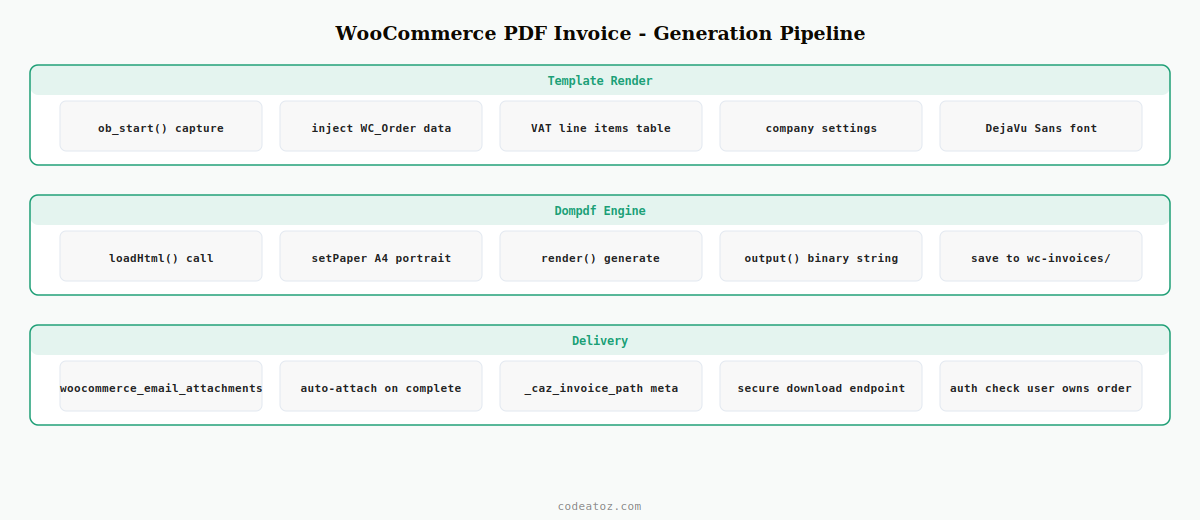
Dompdf converts HTML and CSS into a PDF file entirely in PHP — no external binary or server configuration needed. For a WooCommerce PDF invoice, this means you design the invoice as an HTML template, inject order data via PHP, and pass the rendered HTML to Dompdf which returns a binary PDF string. The PDF can then be saved to the server for later download, attached to an email, or streamed directly to the browser.
Step 1: Install Dompdf for the WooCommerce PDF Invoice Generator
Add Dompdf to your plugin via Composer. Dompdf is the most widely-used PHP PDF library for WooCommerce PDF invoice generation because it supports a wide CSS subset, handles Unicode text correctly, and has no server dependencies beyond PHP.
# From your plugin directory
composer require dompdf/dompdf

# Autoload in your plugin main file:
# require_once plugin_dir_path( __FILE__ ) . 'vendor/autoload.php';
Step 2: Build the WooCommerce PDF Invoice HTML Template
Design the WooCommerce PDF invoice as an HTML file with inline CSS — Dompdf supports a subset of CSS 2.1, so avoid flexbox and grid. Use table-based layout for reliable column alignment in the invoice line items.
<?php
// templates/invoice.php — WooCommerce PDF invoice template
/** @var WC_Order $order */
/** @var array $settings */
$items = $order->get_items();
?>
<!DOCTYPE html>
<html>
<head>
<meta charset="utf-8">
<style>
body { font-family: DejaVu Sans, sans-serif; font-size: 12px; color: #1a1a1a; margin: 0; }
.header { background: #0a0f0a; color: #ffffff; padding: 24px 32px; }
.logo { font-size: 22px; font-weight: bold; color: #1D9E75; }
.inv-no { font-size: 11px; color: #cccccc; margin-top: 4px; }
.body { padding: 24px 32px; }
table { width: 100%; border-collapse: collapse; margin-top: 16px; }
th { background: #f0faf6; border-bottom: 2px solid #1D9E75; padding: 8px; text-align: left; font-size: 11px; }
td { padding: 8px; border-bottom: 1px solid #f0f0f0; font-size: 11px; }
.total { font-weight: bold; background: #f8f8f8; }
.footer { margin-top: 32px; font-size: 10px; color: #888; border-top: 1px solid #eee; padding-top: 12px; }
</style>
</head>
<body>
<div class="header">
<div class="logo"><?php echo esc_html( $settings['company_name'] ); ?></div>
<div class="inv-no">INVOICE #<?php echo esc_html( $order->get_order_number() ); ?> ·
<?php echo esc_html( $order->get_date_created()->date( 'd M Y' ) ); ?></div>
</div>
<div class="body">
<table>
<thead>
<tr><th>Item</th><th>Qty</th><th>Unit Price</th><th>VAT</th><th>Total</th></tr>
</thead>
<tbody>
<?php foreach ( $items as $item ) :
$product = $item->get_product();
$line_tax = $item->get_total_tax();
$line_excl = $item->get_subtotal();
?>
<tr>
<td><?php echo esc_html( $item->get_name() ); ?></td>
<td><?php echo esc_html( $item->get_quantity() ); ?></td>
<td>£<?php echo number_format( $line_excl / $item->get_quantity(), 2 ); ?></td>
<td>£<?php echo number_format( $line_tax, 2 ); ?></td>
<td>£<?php echo number_format( $item->get_total(), 2 ); ?></td>
</tr>
<?php endforeach; ?>
<tr class="total">
<td colspan="4">Total (inc. VAT)</td>
<td>£<?php echo number_format( $order->get_total(), 2 ); ?></td>
</tr>
</tbody>
</table>
<div class="footer">
<?php echo esc_html( $settings['company_name'] ); ?> ·
VAT No: <?php echo esc_html( $settings['vat_number'] ); ?> ·
<?php echo esc_html( $settings['company_address'] ); ?>
</div>
</div>
</body></html>Step 3: Generate the WooCommerce PDF Invoice with Dompdf
The generator class loads the HTML template, injects order data, passes it to Dompdf, and saves the resulting PDF to the uploads directory. The saved file path is stored in order meta for later retrieval.
<?php
use DompdfDompdf;
use DompdfOptions;

class CAZ_PDF_Invoice {

    public static function generate( int $order_id ): string {
        $order    = wc_get_order( $order_id );
        if ( ! $order ) return '';

        $settings = [
            'company_name'    => get_option( 'caz_inv_company_name', get_bloginfo('name') ),
            'vat_number'      => get_option( 'caz_inv_vat_number', '' ),
            'company_address' => get_option( 'caz_inv_address', '' ),
        ];

        // Render the WooCommerce PDF invoice HTML template
        ob_start();
        include plugin_dir_path( __FILE__ ) . 'templates/invoice.php';
        $html = ob_get_clean();

        // Generate PDF with Dompdf
        $options = new Options();
        $options->set( 'isHtml5ParserEnabled', true );
        $options->set( 'isRemoteEnabled', false );   // disable for security

        $dompdf = new Dompdf( $options );
        $dompdf->loadHtml( $html );
        $dompdf->setPaper( 'A4', 'portrait' );
        $dompdf->render();

        // Save WooCommerce PDF invoice to uploads
        $upload_dir = wp_upload_dir();
        $dir        = $upload_dir['basedir'] . '/wc-invoices/';
        wp_mkdir_p( $dir );

        $filename   = 'invoice-' . $order->get_order_number() . '-' . time() . '.pdf';
        $path       = $dir . $filename;
        file_put_contents( $path, $dompdf->output() );

        // Store path in order meta for later retrieval
        $order->update_meta_data( '_caz_invoice_path', $path );
        $order->update_meta_data( '_caz_invoice_url',  $upload_dir['baseurl'] . '/wc-invoices/' . $filename );
        $order->save();

        return $path;
    }
}
Step 4: Attach the WooCommerce PDF Invoice to Order Confirmation Email
Hook into WooCommerce’s email attachment filter to automatically attach the generated WooCommerce PDF invoice to the customer order confirmation email. Generate the PDF at the point the order is marked complete if it hasn’t been generated yet.
add_filter( 'woocommerce_email_attachments', 'caz_attach_pdf_invoice', 10, 3 );

function caz_attach_pdf_invoice( array $attachments, string $email_id, $object ): array {
    // Only attach to customer-facing completed/processing emails
    if ( ! in_array( $email_id, ['customer_completed_order', 'customer_processing_order'], true ) ) {
        return $attachments;
    }

    $order = $object instanceof WC_Order ? $object : null;
    if ( ! $order ) return $attachments;

    // Generate if not yet created
    $path = $order->get_meta( '_caz_invoice_path' );
    if ( ! $path || ! file_exists( $path ) ) {
        $path = CAZ_PDF_Invoice::generate( $order->get_id() );
    }

    if ( $path && file_exists( $path ) ) {
        $attachments[] = $path;
    }

    return $attachments;
}
The Dompdf GitHub repository covers all CSS support and configuration options for the WooCommerce PDF invoice renderer. The WooCommerce email documentation covers the woocommerce_email_attachments filter and all available email hooks. See our WooCommerce custom email guide for building bespoke email classes, and our WooCommerce hooks reference for order status hooks used to trigger invoice generation.
💡 Store WooCommerce PDF invoice files outside the publicly accessible webroot or protect the wc-invoices/ directory with an .htaccess file restricting direct access. Serve downloads through a PHP handler that verifies the current user owns the order before streaming the PDF — never expose invoice URLs that any visitor can access by guessing the filename.
Frequently Asked Questions — WooCommerce PDF Invoice
How do I generate a WooCommerce PDF invoice without a plugin?
Install Dompdf via Composer in your custom plugin. Design the invoice as an HTML template with inline CSS. Load the template, inject order data (items, totals, billing address, VAT number) and pass the rendered HTML to Dompdf’s loadHtml() and render() methods. Save the output() string to a file in the uploads directory. This generates a complete WooCommerce PDF invoice with no external dependencies beyond PHP and Composer.
How do I attach a WooCommerce PDF invoice to the order email?
Use the woocommerce_email_attachments filter. Check the email_id parameter to restrict attachment to customer-facing emails like customer_completed_order. Generate the PDF if it hasn’t been created yet, then append the file path to the attachments array. WordPress’s wp_mail() and WooCommerce’s email system handle the multipart attachment automatically when a file path is in the attachments array.
What PHP library should I use for a WooCommerce PDF invoice?
Dompdf is the best choice for a WooCommerce PDF invoice in a PHP environment — it has no binary dependencies, supports a useful CSS subset, handles UTF-8 text correctly, and is installed via Composer. TCPDF is an alternative that supports more advanced PDF features but requires manual layout positioning. For simple branded invoices, Dompdf’s HTML-to-PDF approach is significantly easier to maintain.
How do I make a HMRC-compliant WooCommerce PDF invoice?
A HMRC-compliant WooCommerce PDF invoice must include: a unique sequential invoice number, the invoice date, your company name and registered address, your VAT registration number, the customer’s name and address, itemised line items with unit prices excluding VAT, the VAT rate and amount per line, the total excluding VAT, the total VAT, and the total including VAT. Store these as plugin settings so the store owner can configure them without code changes.
How do I let customers download their WooCommerce PDF invoice from My Account?
Add a Download Invoice action to the WooCommerce My Account orders table using the woocommerce_my_account_my_orders_actions filter. Create a secure download endpoint that verifies the current user’s order ownership using wc_get_order() and comparing customer IDs before streaming the PDF. Use readfile() with the correct Content-Type: application/pdf header. Never serve WooCommerce PDF invoice files via a direct URL without authentication.
Can Dompdf handle a branded WooCommerce PDF invoice with a logo?
Yes — embed the logo as a base64-encoded data URI in the HTML template’s img src attribute. This avoids Dompdf’s remote resource loading (which should be disabled for security) and ensures the logo renders reliably without network requests. Convert the logo file to base64 once and store the data URI string in the plugin settings. Keep the logo under 200KB for reasonable WooCommerce PDF invoice generation speed.
Need a Custom WooCommerce PDF Invoice Plugin?
CodeAtoZ builds bespoke WooCommerce PDF invoice generators — branded layouts, VAT compliance, email attachment, and secure My Account download.