WooCommerce Stripe Integration — Custom Payment Flow & Webhooks (2026)
A custom WooCommerce Stripe integration using the Stripe Payment Intents API gives you full control over the checkout flow, 3DS/SCA authentication, webhook handling, and saved payment methods — without being constrained by a third-party plugin’s configuration options. This WooCommerce Stripe integration guide covers the complete implementation: creating a Payment Intent server-side, confirming it from the browser with Stripe.js, handling webhooks for asynchronous payment events, processing refunds programmatically, and saving customer payment methods for repeat purchases. All code is built against the Stripe API 2025-01 version used in production in 2026.
The modern WooCommerce Stripe integration architecture uses the Payment Intents API rather than the legacy Charges API. Payment Intents handle Strong Customer Authentication (SCA) and 3D Secure automatically — Stripe determines whether additional authentication is required based on the card, amount, and risk level, and your integration handles the result via webhook. This is the pattern required for any UK or EU WooCommerce Stripe integration to comply with PSD2.
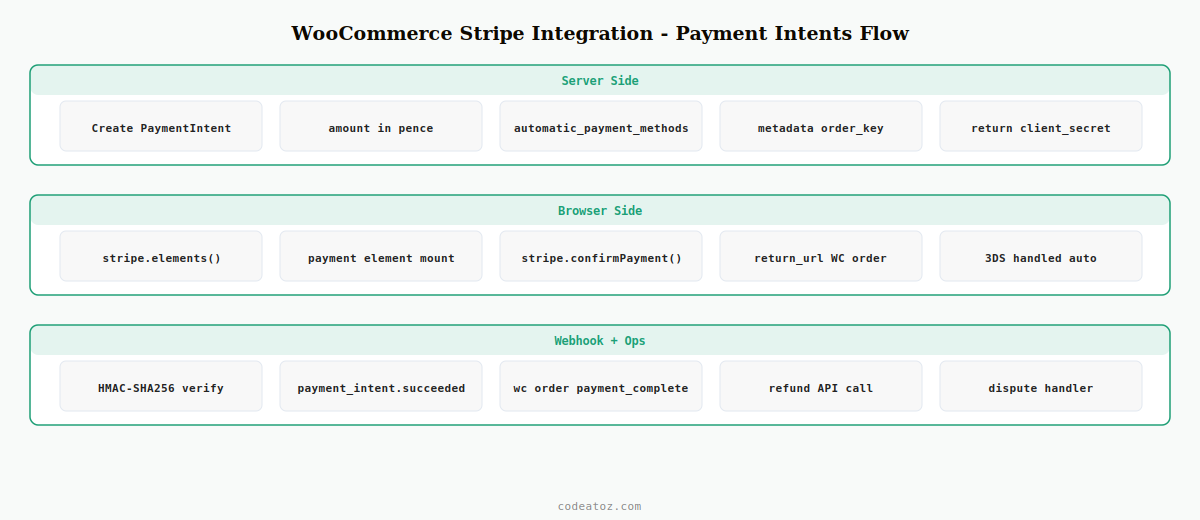
Step 1: WooCommerce Stripe Integration — Create a Payment Intent Server-Side
The WooCommerce Stripe integration always starts server-side: create a Payment Intent before the customer sees the payment form. This gives Stripe the order amount and currency upfront so it can determine whether 3DS is needed before the card is submitted.
<?php
add_action( 'wp_ajax_caz_stripe_create_intent',        'caz_stripe_create_payment_intent' );
add_action( 'wp_ajax_nopriv_caz_stripe_create_intent', 'caz_stripe_create_payment_intent' );

function caz_stripe_create_payment_intent(): void {
    check_ajax_referer( 'caz-stripe-nonce', 'nonce' );

    $secret_key = get_option( 'caz_stripe_secret_key' );
    $cart_total = (int) round( WC()->cart->get_total( 'raw' ) * 100 ); // in pence/cents
    $currency   = strtolower( get_woocommerce_currency() );

    // Call Stripe API for the WooCommerce Stripe integration
    $response = wp_remote_post( 'https://api.stripe.com/v1/payment_intents', [
        'headers' => [
            'Authorization' => 'Bearer ' . $secret_key,
            'Content-Type'  => 'application/x-www-form-urlencoded',
            'Stripe-Version'=> '2025-01-27.acacia',
        ],
        'body' => http_build_query([
            'amount'                    => $cart_total,
            'currency'                  => $currency,
            'automatic_payment_methods' => [ 'enabled' => 'true' ],
            'metadata'                  => [
                'woocommerce_order_key' => WC()->session->get( 'order_awaiting_payment' ) ?? '',
                'integration'           => 'caz_woocommerce_stripe',
            ],
        ]),
    ]);

    $body = json_decode( wp_remote_retrieve_body( $response ), true );

    if ( isset( $body['error'] ) ) {
        wp_send_json_error( $body['error']['message'], 400 );
    }

    wp_send_json_success([
        'client_secret' => $body['client_secret'],
        'intent_id'     => $body['id'],
    ]);
}
Step 2: WooCommerce Stripe Integration — Confirm Payment with Stripe.js
The browser-side of the WooCommerce Stripe integration uses Stripe.js to render the Payment Element (which handles card, Apple Pay, Google Pay, and BACS automatically) and confirm the Payment Intent after the customer submits the form.
// Load Stripe.js (add to wp_enqueue_scripts)
// <script src="https://js.stripe.com/v3/"></script>

const stripe   = Stripe( cazStripe.publishableKey );
let elements, paymentElement;

async function initStripeCheckout() {
  // Get client_secret from WooCommerce Stripe integration PHP handler
  const res    = await fetch( cazStripe.ajaxUrl, {
    method: 'POST',
    body:   new URLSearchParams({ action: 'caz_stripe_create_intent', nonce: cazStripe.nonce }),
  });
  const data   = await res.json();
  if ( ! data.success ) return console.error( 'WooCommerce Stripe integration error:', data.data );

  elements       = stripe.elements({ clientSecret: data.data.client_secret });
  paymentElement = elements.create( 'payment' );
  paymentElement.mount( '#caz-stripe-payment-element' );
}

async function handleCheckoutSubmit( e ) {
  e.preventDefault();

  const { error } = await stripe.confirmPayment({
    elements,
    confirmParams: {
      return_url: cazStripe.returnUrl,  // WooCommerce order received page
    },
  });

  if ( error ) {
    document.getElementById( 'caz-stripe-error' ).textContent = error.message;
  }
  // On success Stripe redirects to return_url automatically
}

document.addEventListener( 'DOMContentLoaded', () => {
  initStripeCheckout();
  document.querySelector( '#caz-payment-form' )
    .addEventListener( 'submit', handleCheckoutSubmit );
});
Step 3: WooCommerce Stripe Integration — Webhook Handler
The webhook is the most important part of any WooCommerce Stripe integration. Stripe sends payment confirmation asynchronously — your webhook handler marks the WooCommerce order as paid when Stripe confirms the payment, and handles charge failures and disputes.
add_action( 'woocommerce_api_caz_stripe_webhook', 'caz_stripe_webhook_handler' );

function caz_stripe_webhook_handler(): void {
    $payload    = file_get_contents( 'php://input' );
    $sig_header = $_SERVER['HTTP_STRIPE_SIGNATURE'] ?? '';
    $secret     = get_option( 'caz_stripe_webhook_secret' );

    // Verify Stripe webhook signature — critical for WooCommerce Stripe integration security
    $tolerance  = 300; // seconds
    $parts      = [];
    foreach ( explode( ',', $sig_header ) as $part ) {
        [$k, $v]    = explode( '=', $part, 2 );
        $parts[$k]  = $v;
    }
    $timestamp      = (int) ( $parts['t'] ?? 0 );
    $signed_payload = $timestamp . '.' . $payload;
    $expected_sig   = hash_hmac( 'sha256', $signed_payload, $secret );

    if ( ! hash_equals( $expected_sig, $parts['v1'] ?? '' )
      || abs( time() - $timestamp ) > $tolerance ) {
        status_header( 400 );
        exit( 'Invalid signature' );
    }

    $event = json_decode( $payload, true );

    switch ( $event['type'] ) {
        case 'payment_intent.succeeded':
            caz_stripe_handle_payment_success( $event['data']['object'] );
            break;
        case 'payment_intent.payment_failed':
            caz_stripe_handle_payment_failed( $event['data']['object'] );
            break;
        case 'charge.dispute.created':
            caz_stripe_handle_dispute( $event['data']['object'] );
            break;
    }

    status_header( 200 );
    exit( 'ok' );
}

function caz_stripe_handle_payment_success( array $intent ): void {
    $order_key = $intent['metadata']['woocommerce_order_key'] ?? '';
    $order_id  = wc_get_order_id_by_order_key( $order_key );
    $order     = wc_get_order( $order_id );
    if ( ! $order || $order->is_paid() ) return;

    $order->payment_complete( $intent['id'] );
    $order->add_order_note( 'WooCommerce Stripe integration: payment confirmed. Intent: ' . $intent['id'] );
}
Step 4: WooCommerce Stripe Integration — Refund Processing
Process refunds programmatically in your WooCommerce Stripe integration by hooking into WooCommerce’s refund system. When a store owner issues a refund from WP Admin, this hook fires the Stripe Refund API automatically.
add_action( 'woocommerce_order_refunded', 'caz_stripe_process_refund', 10, 2 );

function caz_stripe_process_refund( int $order_id, int $refund_id ): void {
    $order      = wc_get_order( $order_id );
    $refund     = wc_get_order( $refund_id );
    $intent_id  = $order->get_transaction_id();
    if ( ! $intent_id || ! str_starts_with( $intent_id, 'pi_' ) ) return;

    $amount_pence = (int) abs( round( $refund->get_total() * 100 ) );
    $secret_key   = get_option( 'caz_stripe_secret_key' );

    // Get charge ID from the Payment Intent for the WooCommerce Stripe integration refund
    $pi_response = wp_remote_get( 'https://api.stripe.com/v1/payment_intents/' . $intent_id, [
        'headers' => [ 'Authorization' => 'Bearer ' . $secret_key ],
    ]);
    $pi          = json_decode( wp_remote_retrieve_body( $pi_response ), true );
    $charge_id   = $pi['latest_charge'] ?? '';
    if ( ! $charge_id ) return;

    wp_remote_post( 'https://api.stripe.com/v1/refunds', [
        'headers' => [ 'Authorization' => 'Bearer ' . $secret_key, 'Content-Type' => 'application/x-www-form-urlencoded' ],
        'body'    => http_build_query([
            'charge'   => $charge_id,
            'amount'   => $amount_pence,
            'metadata' => [ 'woocommerce_refund_id' => $refund_id ],
        ]),
    ]);

    $order->add_order_note( 'WooCommerce Stripe integration: refund £' . number_format( abs( $refund->get_total() ), 2 ) . ' issued.' );
}
The Stripe Payment Intents documentation covers the full Payment Intents lifecycle for a WooCommerce Stripe integration. The Stripe webhooks documentation covers all event types and signature verification. The Stripe SCA guide explains PSD2 compliance requirements relevant to any UK or EU WooCommerce Stripe integration. See our WooCommerce custom email guide for adding payment confirmation emails, and our WooCommerce hooks reference for all payment-related hooks.
⚠ Never log or store Stripe secret keys or card data in WordPress options in plain text. Store the Stripe secret key encrypted using the same AES-256-CBC pattern from our OpenAI WooCommerce plugin guide. Storing secret keys in plain text in wp_options exposes your WooCommerce Stripe integration to a complete account takeover if the database is ever accessed.
Frequently Asked Questions — WooCommerce Stripe Integration
Do I need the official WooCommerce Stripe plugin for a WooCommerce Stripe integration?
No — a custom WooCommerce Stripe integration using the Payment Intents API gives you more control than the official plugin for complex payment flows, custom SCA handling, or subscription billing with stored tokens. The official plugin is the right choice for standard stores that need rapid deployment. A custom WooCommerce Stripe integration is better when you need specific checkout UI, multi-currency routing, or tight integration with a custom order management system.
What is the difference between the Charges API and Payment Intents API for WooCommerce Stripe integration?
The Charges API is the legacy Stripe integration method — it processes cards directly without built-in SCA support. The Payment Intents API is the current standard for any WooCommerce Stripe integration and handles 3D Secure and SCA automatically. In the UK and EU, the Payment Intents API is required to comply with PSD2 Strong Customer Authentication regulations. Stripe no longer recommends new WooCommerce Stripe integrations using the Charges API.
How do I verify Stripe webhook signatures in a WooCommerce Stripe integration?
Retrieve the raw request body with file_get_contents(‘php://input’) before WordPress parses it. Extract the timestamp and signature from the Stripe-Signature header. Rebuild the signed payload as timestamp.rawbody, compute HMAC-SHA256 with your webhook secret, and compare using hash_equals(). Reject any webhook in your WooCommerce Stripe integration where the timestamp is more than 300 seconds old to prevent replay attacks.
How do I handle 3D Secure in a WooCommerce Stripe integration?
With the Payment Intents API and Stripe.js, 3D Secure is handled automatically. When stripe.confirmPayment() is called, Stripe determines whether 3DS is needed and presents the authentication modal if required. Your WooCommerce Stripe integration does not need to handle 3DS logic directly — on success Stripe redirects to the return_url, on failure the error is surfaced via the confirmPayment() promise rejection.
How do I process refunds programmatically in a WooCommerce Stripe integration?
Hook into the woocommerce_order_refunded action. Retrieve the Payment Intent ID from the order’s transaction ID meta. Use the Payment Intent to get the charge ID from latest_charge. Call the Stripe Refunds API with the charge ID and amount in the smallest currency unit (pence for GBP). Add an order note to track the refund. This keeps your WooCommerce Stripe integration fully synchronised with Stripe’s refund records.
How do I save payment methods for returning customers in a WooCommerce Stripe integration?
Create a Stripe Customer object when a logged-in user first checks out and store the customer ID in WordPress user meta. On subsequent checkouts, pass the customer ID in the Payment Intent creation request using the customer parameter. Use setup_future_usage: off_session in the Payment Intent to save the payment method for future charges. Retrieve saved methods from the Stripe Customers API to populate a saved cards dropdown in your WooCommerce Stripe integration checkout.
Need a Custom WooCommerce Stripe Integration?
CodeAtoZ builds custom WooCommerce Stripe integrations — SCA-compliant, webhook-driven, with saved payment methods and subscription billing support.