WooCommerce Subscription Plugin — Custom Recurring Billing Logic in PHP (2026)
Building a WooCommerce subscription plugin from scratch gives you complete control over recurring billing logic — cycle lengths, trial periods, payment gateway integration, and renewal email sequences — without the overhead of a third-party subscription plugin. A custom WooCommerce subscription plugin in PHP registers a new product type, stores subscription meta on orders, schedules renewals via WordPress cron, processes recurring payments through your existing gateway, and sends renewal notifications. This guide covers the complete WooCommerce subscription plugin architecture with code for every component.
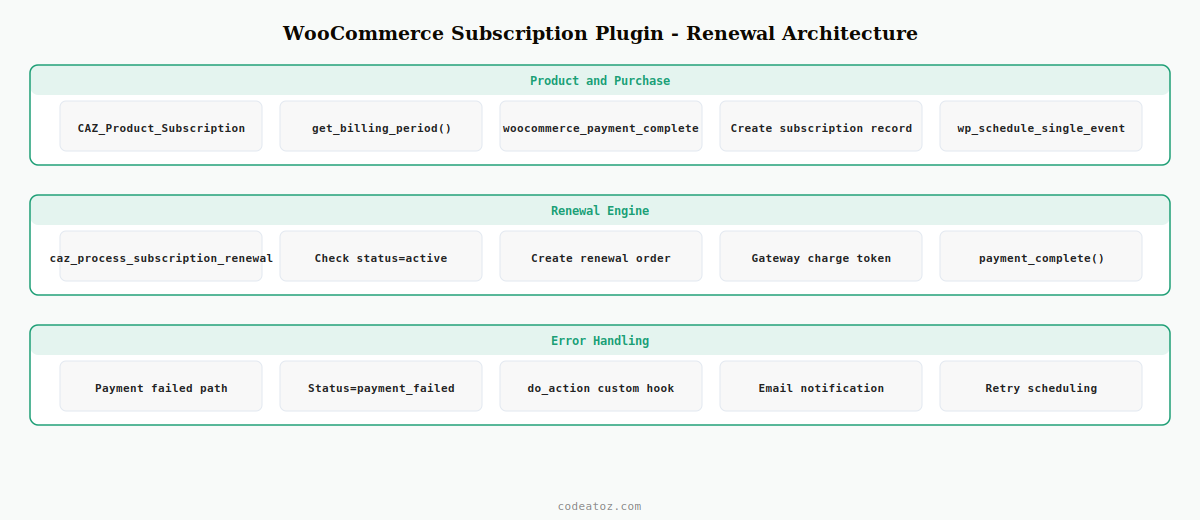
A WooCommerce subscription plugin works by creating a parent order on first purchase and a series of renewal orders on a schedule. The subscription itself is stored as a custom post type or order type, with meta tracking the billing interval, the next renewal date, the payment method token, and the subscription status (active, paused, cancelled, expired). The renewal engine runs on WordPress cron and processes each due subscription automatically.
Step 1: Register the WooCommerce Subscription Plugin Product Type
A WooCommerce subscription plugin needs a custom product type so the product edit screen shows subscription-specific fields like billing period and trial length. Extend WC_Product and register the type via the woocommerce_product_class filter.
<?php
// Register the subscription product type
add_filter( 'product_type_selector', function( array $types ): array {
    $types['caz_subscription'] = __( 'Subscription', 'caz-subs' );
    return $types;
});

add_filter( 'woocommerce_product_class', function( string $class, string $type ): string {
    if ( 'caz_subscription' === $type ) {
        return CAZ_Product_Subscription::class;
    }
    return $class;
}, 10, 2 );

class CAZ_Product_Subscription extends WC_Product {
    public function get_type(): string { return 'caz_subscription'; }

    // Subscription meta: billing period, interval, trial days
    public function get_billing_period(): string {
        return $this->get_meta( '_caz_billing_period' ) ?: 'month';
    }
    public function get_billing_interval(): int {
        return (int) ( $this->get_meta( '_caz_billing_interval' ) ?: 1 );
    }
    public function get_trial_days(): int {
        return (int) ( $this->get_meta( '_caz_trial_days' ) ?: 0 );
    }
    public function get_price_string(): string {
        return wc_price( $this->get_price() ) .
            ' / ' . $this->get_billing_interval() .
            ' ' . $this->get_billing_period();
    }
}
Step 2: Create the Subscription Record After Purchase
When a customer purchases a subscription product, the WooCommerce subscription plugin creates a subscription record storing the payment token, the next renewal date, and the subscription status. Hook into woocommerce_payment_complete to trigger this after successful payment.
add_action( 'woocommerce_payment_complete', 'caz_create_subscription_on_payment' );

function caz_create_subscription_on_payment( int $order_id ): void {
    $order = wc_get_order( $order_id );
    if ( ! $order ) return;

    foreach ( $order->get_items() as $item ) {
        $product = $item->get_product();
        if ( ! $product || 'caz_subscription' !== $product->get_type() ) continue;

        // Calculate first renewal date for this WooCommerce subscription plugin record
        $trial_days = $product->get_trial_days();
        $interval   = $product->get_billing_interval();
        $period     = $product->get_billing_period();

        $next_renewal = $trial_days > 0
            ? strtotime( "+{$trial_days} days" )
            : strtotime( "+{$interval} {$period}" );

        // Store subscription meta on the parent order
        $order->update_meta_data( '_caz_subscription_status',   'active' );
        $order->update_meta_data( '_caz_subscription_product',  $product->get_id() );
        $order->update_meta_data( '_caz_next_renewal',          $next_renewal );
        $order->update_meta_data( '_caz_billing_period',        $period );
        $order->update_meta_data( '_caz_billing_interval',      $interval );
        $order->update_meta_data( '_caz_payment_token',         $order->get_payment_method_title() );
        $order->save();

        // Schedule the first renewal in WordPress cron
        wp_schedule_single_event( $next_renewal, 'caz_process_subscription_renewal', [ $order_id ] );
    }
}
Step 3: Build the WooCommerce Subscription Plugin Renewal Engine
The renewal engine fires on a scheduled cron event, creates a new renewal order, processes payment using the stored payment token, and schedules the next renewal. This is the core of any WooCommerce subscription plugin — it must handle failed payments gracefully and move the subscription to the correct status.
add_action( 'caz_process_subscription_renewal', 'caz_process_renewal' );

function caz_process_renewal( int $parent_order_id ): void {
    $parent = wc_get_order( $parent_order_id );
    if ( ! $parent ) return;

    // Check subscription is still active in our WooCommerce subscription plugin
    if ( 'active' !== $parent->get_meta( '_caz_subscription_status' ) ) return;

    $product_id = (int) $parent->get_meta( '_caz_subscription_product' );
    $product    = wc_get_product( $product_id );
    if ( ! $product ) return;

    // Create renewal order
    $renewal = wc_create_order([
        'customer_id'  => $parent->get_customer_id(),
        'created_via'  => 'caz_subscription_plugin',
        'status'       => 'pending',
    ]);
    $renewal->add_product( $product );
    $renewal->set_payment_method( $parent->get_payment_method() );
    $renewal->update_meta_data( '_caz_parent_subscription', $parent_order_id );
    $renewal->calculate_totals();
    $renewal->save();

    // Attempt payment via gateway — this triggers the gateway's charge_stored_token logic
    $result = $renewal->payment_complete();

    if ( $result ) {
        // Schedule next renewal
        $interval     = (int) $parent->get_meta( '_caz_billing_interval' );
        $period       = $parent->get_meta( '_caz_billing_period' );
        $next_renewal = strtotime( "+{$interval} {$period}" );
        $parent->update_meta_data( '_caz_next_renewal', $next_renewal );
        $parent->save();
        wp_schedule_single_event( $next_renewal, 'caz_process_subscription_renewal', [ $parent_order_id ] );
    } else {
        // Payment failed — update subscription status
        $parent->update_meta_data( '_caz_subscription_status', 'payment_failed' );
        $parent->save();
        do_action( 'caz_subscription_payment_failed', $parent_order_id, $renewal->get_id() );
    }
}
The WooCommerce payment documentation covers gateway integration and stored token patterns. The WordPress WP-Cron documentation covers scheduling reliability and Action Scheduler as a more robust alternative for production WooCommerce subscription plugin deployments. See our WooCommerce custom email guide for adding renewal notification emails, and our custom order status guide for adding subscription-specific order statuses.
💡 For production WooCommerce subscription plugin deployments, replace wp_schedule_single_event() with Action Scheduler — the library WooCommerce uses internally. Action Scheduler provides retry logic, logging, and a management UI that WP-Cron lacks, making it far more reliable for recurring billing workflows.
Frequently Asked Questions — WooCommerce Subscription Plugin
Can I build a WooCommerce subscription plugin without buying WooCommerce Subscriptions?
Yes — a custom WooCommerce subscription plugin in PHP can implement all the core subscription features: recurring product type, renewal scheduling, payment processing via stored tokens, subscription status management, and email notifications. The main advantages of a custom WooCommerce subscription plugin are no licence cost, full control over the data structure, and no compatibility concerns with other plugins.
How does renewal payment work in a custom WooCommerce subscription plugin?
The renewal engine creates a new WC_Order for each renewal cycle and calls payment_complete() or the gateway’s specific charge method with the stored payment token from the original subscription order. The payment gateway must support tokenised charging — Stripe and Braintree both support this. The WooCommerce subscription plugin stores the token reference in the parent order meta and passes it to the gateway during each renewal.
What is the best cron approach for a WooCommerce subscription plugin?
Use Action Scheduler rather than WP-Cron for production WooCommerce subscription plugin renewals. Action Scheduler provides a persistent queue, automatic retries on failure, logging, and a WP Admin management interface. WP-Cron’s timing is tied to site traffic — on low-traffic stores, renewals may process late. Action Scheduler runs reliably regardless of traffic and integrates naturally with WooCommerce’s existing queue system.
How do I handle failed payments in a WooCommerce subscription plugin?
When the gateway returns a failure, update the subscription status in the parent order meta to payment_failed and fire a custom action hook. Hook into this action to send a payment failure email to the customer, create a retry attempt after a configurable delay, and escalate to cancelled if payment fails after a set number of retries. Log every payment attempt and its result in order notes so support staff can see the full history for each WooCommerce subscription plugin renewal.
How do I let customers cancel their subscription in a WooCommerce subscription plugin?
Add a Cancel Subscription button to the WooCommerce My Account orders page. Hook into the button action to update the subscription status meta on the parent order to cancelled and remove any pending cron events using wp_clear_scheduled_hook(). Send a cancellation confirmation email to the customer. Always confirm the requesting user owns the subscription before allowing cancellation in your WooCommerce subscription plugin.
Should I store subscription data in orders or a custom table in a WooCommerce subscription plugin?
For simple WooCommerce subscription plugin implementations, storing subscription meta on the parent order using update_meta_data() is the fastest approach. For larger stores or complex subscription logic, a dedicated custom table gives you faster queries and cleaner data separation. Use a custom table when you need to query all active subscriptions at once, track billing history separately from orders, or build a subscription management admin UI in your WooCommerce subscription plugin.
Need a Custom WooCommerce Subscription Plugin Built?
CodeAtoZ builds bespoke WooCommerce subscription plugins — custom billing cycles, trial periods, payment gateway integration, and subscriber management.