How to Override WooCommerce Templates — The Right Way vs the Wrong Way (2026)
The complete guide to override WooCommerce templates safely — theme folder method, plugin method, version checking, and the one approach that breaks on every update.
Knowing how to override WooCommerce templates correctly is essential for any WooCommerce developer. The wrong way to override WooCommerce templates — copying files directly without version checks — is the most common cause of broken stores after an update. The right way to override WooCommerce templates uses WooCommerce’s built-in template loader system, isolates your overrides, and includes a version check so you know instantly when a template is out of date.
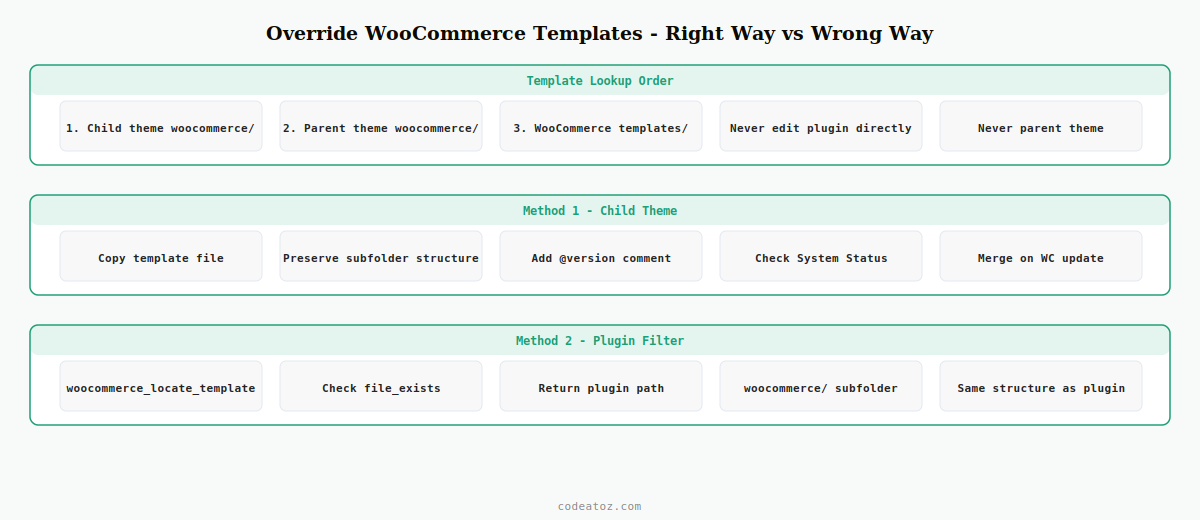
WooCommerce uses a layered template system. When rendering any template, it checks three locations in order: your child theme’s woocommerce/ folder, your parent theme’s woocommerce/ folder, and finally the WooCommerce plugin’s own templates/ folder. This lookup is what makes it possible to override WooCommerce templates without touching the plugin itself.
The Wrong Way to Override WooCommerce Templates — And Why It Always Breaks
The wrong way is deceptively simple: copy a WooCommerce template into your theme and edit it without tracking the version. When WooCommerce updates, the original may add new hooks, fix security issues, or change the HTML. Your override is a frozen snapshot. The WooCommerce admin shows a “Template Out Of Date” warning — and if ignored, you run outdated code silently.
⚠ Most dangerous pattern: copying WooCommerce templates into a parent theme, then never updating them. Every WooCommerce update applies to the original but not your copy. This breaks checkout and product pages without any obvious error message.
Override WooCommerce Templates — Method 1: Child Theme Folder (Recommended for Themes)
Copy the template from WooCommerce into your child theme’s woocommerce/ folder, preserving the original directory structure exactly. WooCommerce’s loader will find and use your copy automatically — no code needed.
WooCommerce source:
  wp-content/plugins/woocommerce/templates/single-product/add-to-cart/simple.php

Your child theme override (preserves exact subfolder path):
  wp-content/themes/your-child-theme/woocommerce/single-product/add-to-cart/simple.php
The most important part: include the version header comment exactly as it appears in the WooCommerce source file:
<?php
/**
 * Simple product add to cart
 *
 * This template can be overridden by copying it to
 * yourtheme/woocommerce/single-product/add-to-cart/simple.php
 *
 * @version 7.8.0   <-- keep this in sync with WooCommerce source
 */
WooCommerce compares your @version with the plugin’s version. A mismatch triggers the outdated notice in WooCommerce → Status → System Status. Check this after every WooCommerce update.
Override WooCommerce Templates — Method 2: Plugin with woocommerce_locate_template (Recommended for Plugins)
When you need to override WooCommerce templates inside a distributable plugin, use the woocommerce_locate_template filter. This redirects WooCommerce’s template lookup to your plugin directory without requiring a theme.
add_filter( 'woocommerce_locate_template', 'caz_override_wc_templates', 10, 3 );

function caz_override_wc_templates( string $template, string $template_name, string $template_path ): string {
    $plugin_template = plugin_dir_path( __FILE__ ) . 'woocommerce/' . $template_name;
    if ( file_exists( $plugin_template ) ) {
        return $plugin_template;
    }
    return $template;
}
Place your modified templates in a woocommerce/ subfolder inside your plugin, mirroring the original directory structure from the WooCommerce templates/ folder. The WooCommerce template customisation documentation covers all available hooks. The full list of templates is on WooCommerce GitHub. Also see our WooCommerce hooks reference for hook-based alternatives.
When to Use Hooks Instead of Override WooCommerce Templates
Before you override WooCommerce templates, check whether a hook achieves the same result with no upgrade risk. WooCommerce fires action and filter hooks at almost every point in every template. Adding content, changing a price display, injecting a badge, hiding a field — these can often be done with add_action() without needing to override WooCommerce templates at all. Hook-based changes survive every WooCommerce update untouched.
✓ Rule of thumb: use hooks first. Only override WooCommerce templates when the structural HTML change cannot be achieved any other way. The fewer override WooCommerce templates files you maintain, the less work after every update.
Keeping Override WooCommerce Templates Up to Date After Updates
After every WooCommerce update, go to WooCommerce → Status → System Status → Overrides. Any override WooCommerce templates files with a version mismatch are listed. For each one: open the WooCommerce source file, diff it against your override, merge any changes, and update the @version comment. Never dismiss the warning without reviewing the diff — security patches and HPOS compatibility fixes are applied at the template level and must be merged into your overrides.
Frequently Asked Questions — Override WooCommerce Templates
Where do I put files to override WooCommerce templates in a theme?
Create a woocommerce/ folder inside your child theme and copy the template file there, preserving the original subdirectory structure from the WooCommerce templates/ folder. For example, woocommerce/single-product/add-to-cart/simple.php in your child theme overrides the same WooCommerce file. Always use a child theme, never a parent theme.
How do I override WooCommerce templates from a plugin?
Use the woocommerce_locate_template filter to redirect WooCommerce’s template lookup to your plugin’s directory. Return your plugin file path when it exists, otherwise return the original template path. Create a woocommerce/ subfolder in your plugin with the same directory structure as the WooCommerce templates/ folder.
How do I know when my override WooCommerce templates are out of date?
Go to WooCommerce → Status → System Status → Overrides section. WooCommerce compares the @version comment in your override file against the current version in the plugin. Any version mismatch is listed as outdated. Check this section after every WooCommerce update and merge any changes before dismissing the warning.
Can I override WooCommerce templates in a parent theme?
Technically yes, but strongly discouraged. Parent theme updates can overwrite or remove your customised files entirely. Always override WooCommerce templates in a child theme so your changes persist independently of parent theme updates.
Is there an alternative to override WooCommerce templates for minor changes?
Yes — WooCommerce fires action and filter hooks throughout every template file. For adding content, changing displayed values, or hiding elements, hooks are the better choice. They carry zero upgrade risk and require no version tracking. Only override WooCommerce templates when the structural HTML must change fundamentally.
What happens if I override WooCommerce templates and then update WooCommerce?
Your override file continues to be used unchanged after the update. WooCommerce will flag it as outdated in System Status if the source template changed. If you dismiss the warning without merging changes, you may miss security patches or HPOS compatibility fixes. Always review the diff between your override WooCommerce templates file and the updated source before dismissing.
Need Safe WooCommerce Customisation?
CodeAtoZ builds upgrade-safe WooCommerce customisations using hooks-first and minimal template overrides — your store stays working after every update.